How to use the CRM
A walkthrough of every page, button, and behavior — written for the team, not the spec. Skim the sidebar, jump to whatever answers your question. Living document — sections grow as features ship.
Start with the short CRM 101 — Start Here guide: sign in, install on your phone, turn on notifications, and the day-one basics. Come back here when you want the full detail on any page.
1. Getting started #
The MTA CRM is a mobile-first, voice-driven sales tool built specifically for our team. Bookmark it on your phone and your laptop — same URL, same data, layout adapts to whichever you're on.
Where to find it
- Live URL: morris-crm-app.pages.dev — bookmark this on phone and laptop.
- Add to Home Screen (iPhone): open the URL in Safari → tap the share icon → "Add to Home Screen." It becomes a fullscreen app icon, no browser chrome.
- Same on Android: Chrome menu → "Install app" or "Add to Home Screen."
Mobile vs desktop layout
The CRM is mobile-first — every screen is designed for the phone first, then adapts up. Two layouts to know about:
- Phone & tablet: Bottom nav with 6 tabs — Home, Dealers, Contacts, Vendors, Tasks, More.
- Desktop (laptop browser): Left side nav that's always visible plus a few extra tabs (Notifications, Distribution, Pipeline, Activity Feed) that live in More on mobile.
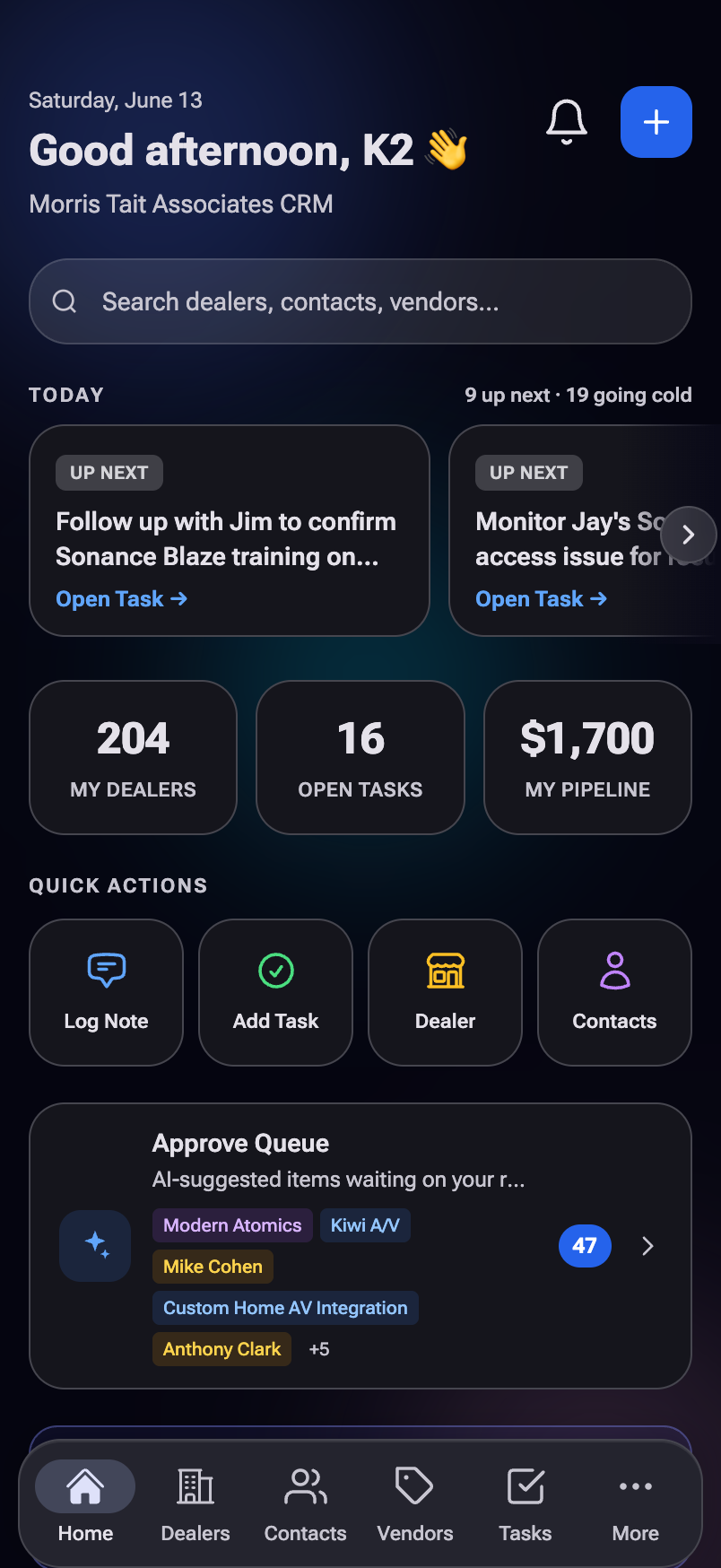
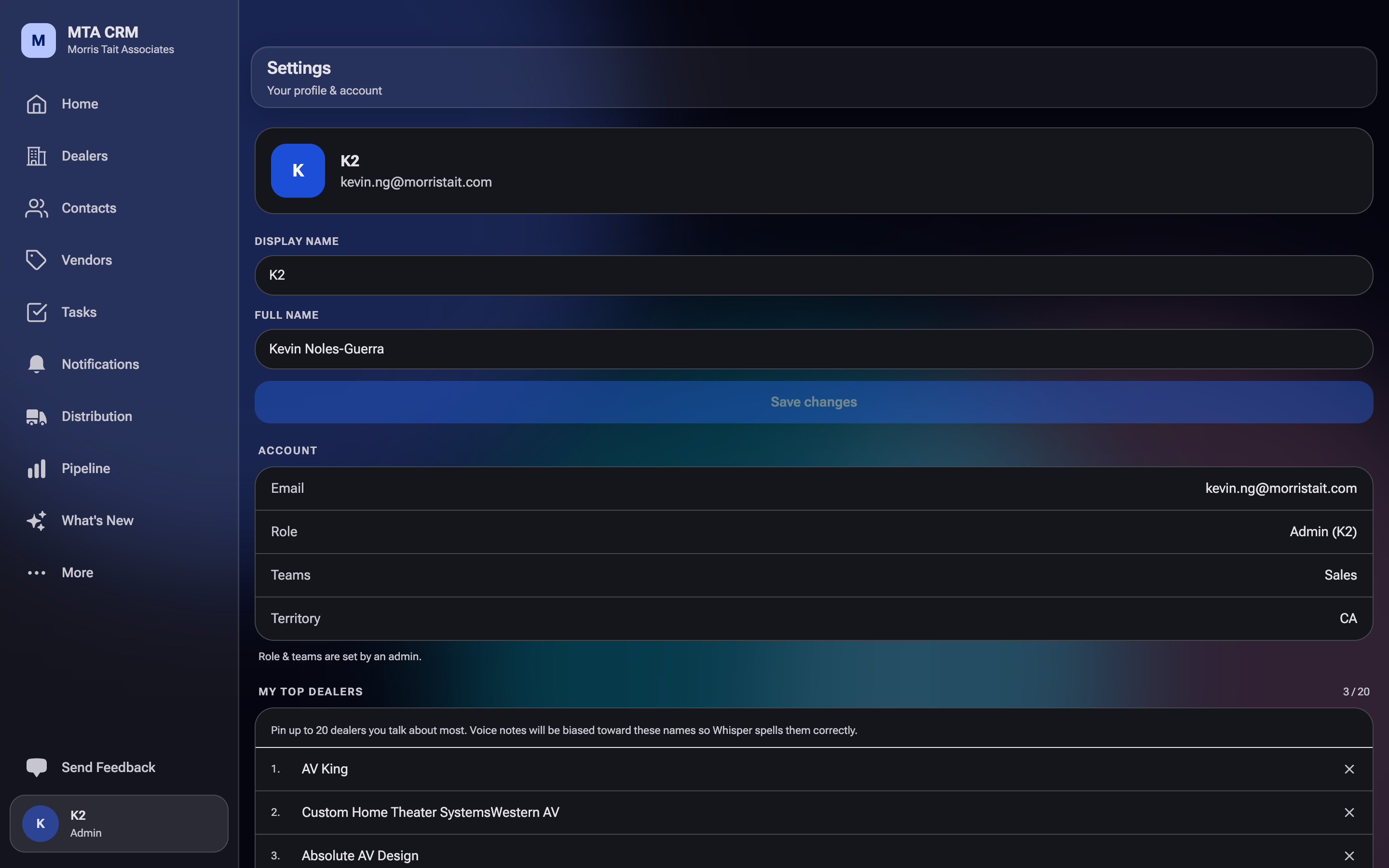
The app is genuinely good on phone — most reps run it from the road. Office staff who live on a laptop should keep a browser tab pinned; the desktop layout has the extra direct tabs without diving into More.
Who can do what
| Role | What they see |
|---|---|
| Sales rep | Everything in the main nav. Defaults are tuned to "their" dealers (the ones they're assigned to). |
| Office / steward | Everything reps see + Import & Reconcile for migrating dealers/contacts from Repbox. |
| K2 (admin) | Everything + MCP Dashboard (AI cost/health telemetry) and Feedback Inbox (triaging team feedback submissions). |
Approval Queue v1 (full review interface), Tasks polish (recurring, templates, snooze), Pipeline MVP, MCP Dashboard, and Feedback Page round out the daily-driver scope. After Phase 2, the legacy CRM is fully retired.
2. Signing in #
The CRM lives at morris-crm-app.pages.dev. You sign in with your @morristait.com Google account (the one we set up for you). No password to remember — Google handles the credentials.
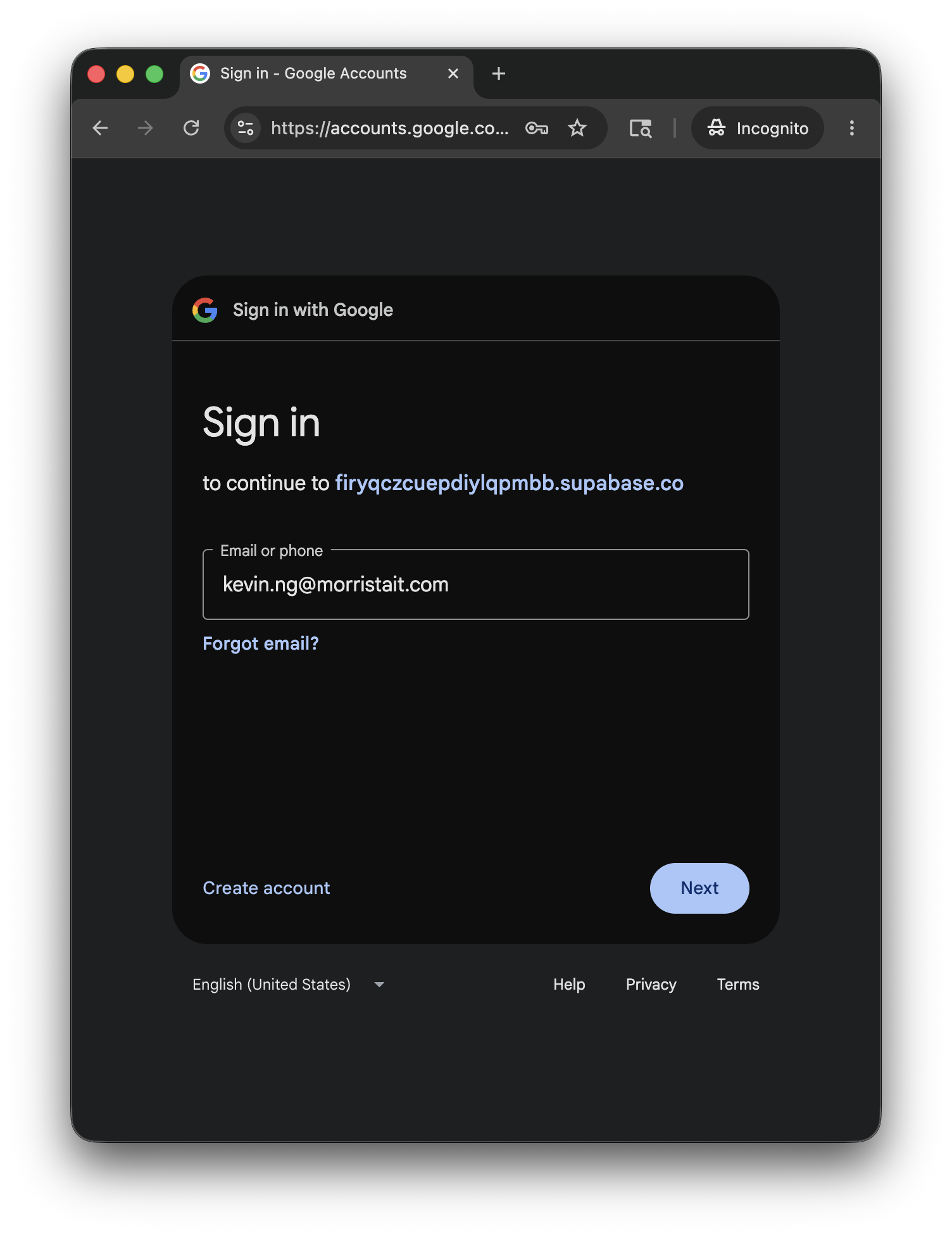
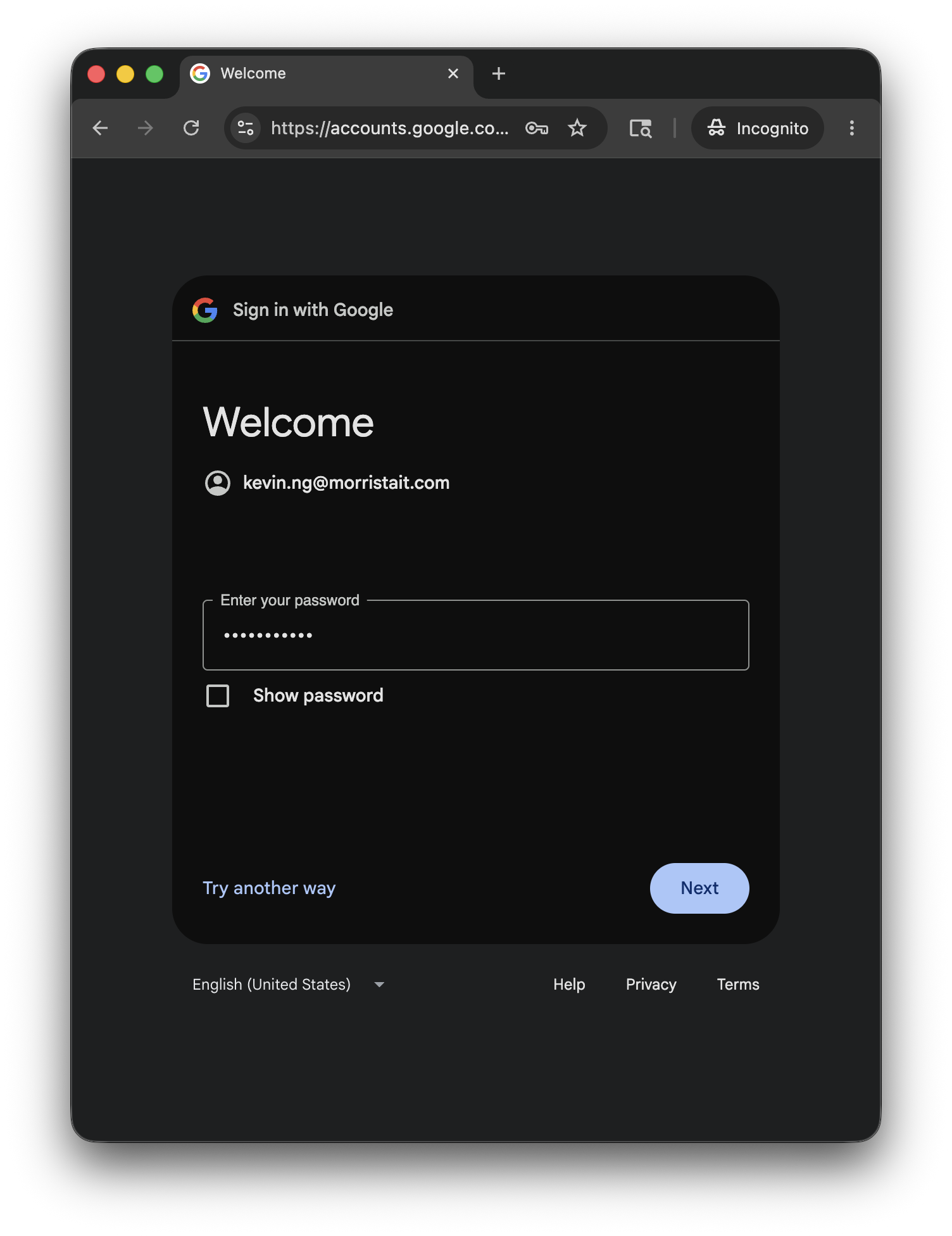
After step 2 you land on the CRM Home — no further setup, no MTA-side password. The first time only, Google may show an "unverified app" screen (see below).
First-time sign-in (about 30 seconds)
- Open morris-crm-app.pages.dev.
- Tap Sign in with your @morristait.com Google account.
- In the Google picker, pick your @morristait.com account.
- You'll see a screen titled "Google hasn't verified this app." This is expected — it's our internal tool that only the 8 of us use, and we never asked Google to formally review it. Tap Advanced → Continue to MTA CRM (unsafe).
- You're in. Next time you open the app, you'll be signed in automatically as long as you're signed into your work Google account in that browser.
Google just hasn't reviewed it, because there's no reason for them to — it's an internal app for 8 people. You'll only see this warning once per browser per Google account. If you see it again, you cleared browser data, switched browsers, or are using Incognito.
Multiple Google accounts open at once
If you have a personal Gmail signed into the same browser as your work account (very common on phones), the picker will show both accounts. The CRM will only let your @morristait.com account through — but the friction is wasted taps. Two ways to keep it clean:
- Pick deliberately every time — the picker always shows both, so you just tap the work one. The app uses
prompt=select_accountso it'll never silently auto-sign-in with the wrong account. - Use a separate browser profile for work — Chrome and Edge both support "profiles" (top-right avatar → Add profile). If you have one profile signed only into your work Google, the picker shows one account and there's nothing to choose.
If you ever accidentally pick the wrong account, the app will refuse the sign-in (the server checks the email domain). Just sign out and pick the right one.
Signing out
Tap More in the bottom nav → scroll to the bottom → Sign out. Or Settings → Sign out. After signing out you're returned to the sign-in page — signing back in is one tap (no warning screen the second time).
Common gotchas
- The "unverified app" warning only appears once per browser per Google account. If you see it again, clear browser data / switched browsers / Incognito.
- The app only works for
@morristait.comaccounts. Personal Gmail is hard-rejected, even if you try. - No password to set, change, or recover. Sign-in is 100% via Google. If you lose access to your work Google account, talk to Kevin — there's no separate CRM password to reset.
The CRM stays signed in across sessions. Bookmark it once on each device and you basically never see the sign-in page again unless your Google session expires (~rare) or you sign out.
3. Home #
The first screen you see after signing in. It's a launchpad — quick stats, universal search, the four most common actions, the Approve Queue preview, and the recent activity feed.
What's on the screen
- Greeting — "Good morning / afternoon / evening, <first name>" + today's date.
- Notification bell (top right) — badge shows unread count, tap to jump to Notifications.
- Universal search bar — type a dealer, contact, or vendor name. Live results grouped by entity type. Tap any row to jump to its detail page.
- Stats row — three quick KPIs (see below).
- Quick Actions — four common starting points.
- Approve Queue tile — only visible if you have pending items waiting for review.
- Recent Activity feed — the last 8 things that happened across the CRM (notes, calls, tasks, etc.). Tap any row to jump to that record.
- Floating “+” button (bottom right) — opens the note-type chooser (Voice or Typed).
The stats row
| Stat | What it counts | Tap behavior |
|---|---|---|
| My Dealers | Dealers currently assigned to you as rep | Jumps to Dealers list filtered to Mine |
| Open Tasks | All open tasks across the team | Jumps to Tasks list |
| My Pipeline | Sum of estimated value of your open opportunities | Jumps to Pipeline filtered to Mine |
Quick Actions
The four most common “I just opened the app, what do I do?” flows:
- Log Note — opens the note-type chooser (voice or typed). The fastest way to capture something that just happened.
- Add Task — opens the Add Task sheet. See Tasks for the full breakdown of @-mention auto-defaults.
- Dealer — jumps to the Dealers list.
- Contacts — jumps to the Contacts list.
Universal search
The search box at the top is a substring match across dealers, contacts, and vendors. Results appear inline as you type (debounced ~200ms so it doesn't spam the database).
- Type 2+ characters to see results.
- Results group by entity type — Dealers, then Contacts, then Vendors.
- Tap any row to jump straight to the detail page.
For most reps, the fastest workflow is: open app → type dealer name → tap result → log a note. Don't navigate through the Dealers list unless you genuinely want to browse.
Recent Activity
Last 8 things that happened across the CRM. Shows the activity type, a snippet of the body, the entity it's about, who created it, and how long ago. Tap any row to jump to the linked entity. To see the full feed, use the Activity Feed page (desktop side nav, or More → Activity Feed on mobile).
4. Dealers #
Dealers are the heart of the CRM — every account we sell to or are working to win. The Dealers page has two layers: the list (browse + search + filter) and the detail page (everything about one dealer, organized into tabs).
The list page
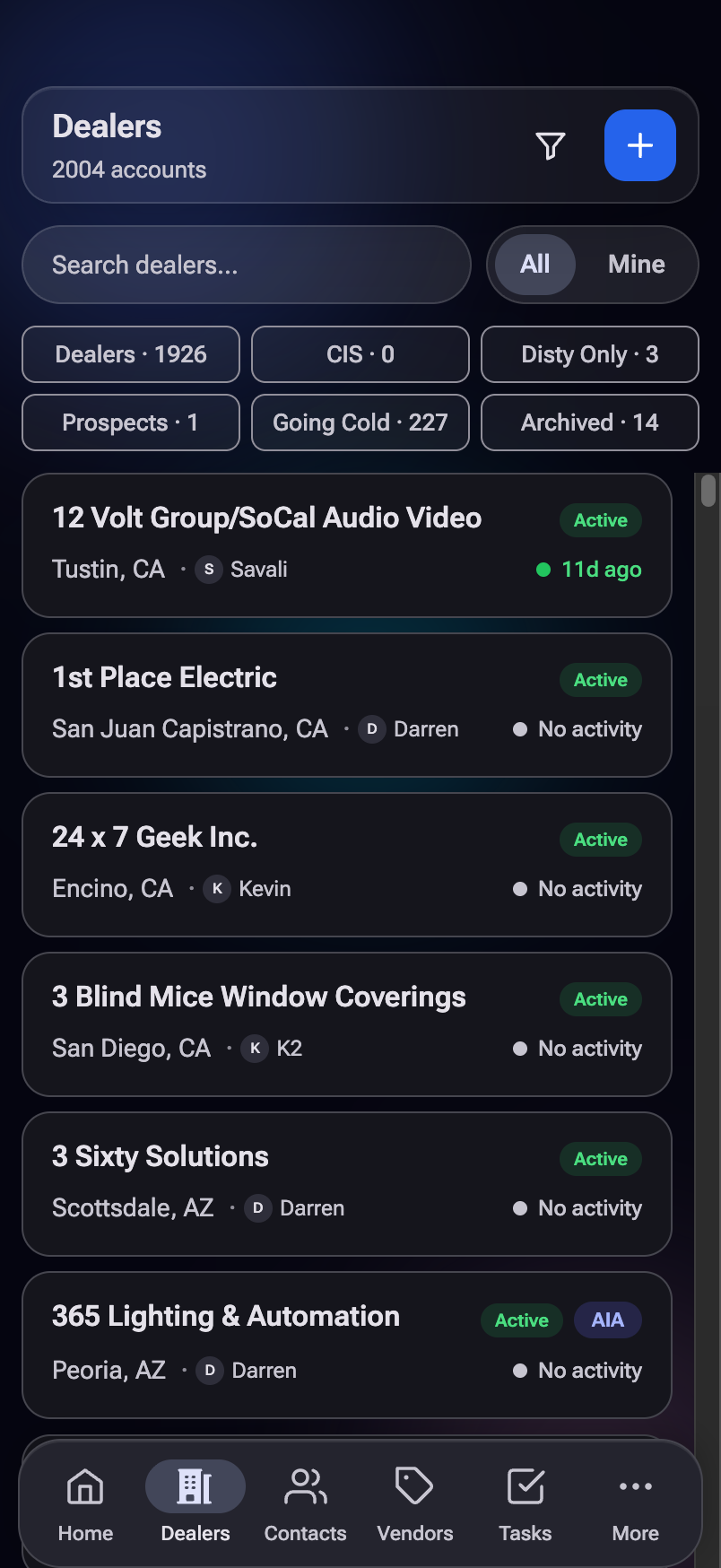
Controls
- Search bar — matches name, DBA, city, or state.
- + button (top right) — opens the Add New Account modal.
- Quick-filter chips — swipeable row: All, Mine, Dealer, Prospect, CIS Only.
- Rep dropdown — filter by assigned rep.
- Show archived toggle — bring soft-archived dealers back into view.
- Clear — wipes all filters in one tap.
Reading a dealer row at a glance
- Primary name — what we call them, usually their everyday business name.
- Secondary name / DBA — the other name (legal vs. DBA — see Glossary).
- City, state, buying group — quick context.
- Last activity dot — color-coded freshness: < 30d 30–60d > 60d never
- Assigned rep initials — small avatar on the right.
- Type badge — "Prospect" or "CIS" if applicable (regular dealers have no badge).
It's fast even with 2000+ dealers — scrolling renders rows on demand. Don't be surprised that the scroll bar position doesn't quite match the position percentage you'd expect; the list "fakes" its height. This is normal.
Adding a new dealer
Tap the + button (top right). You get three ways to add an account:
- Quick Add · AI — the fast path. Type the dealer in, or paste an onboarding form, business card, or email signature and tap Review It with AI — it splits the text into the right fields (business name, DBA, address, phone, website) plus a primary contact. It saves the account directly — there's no approval step. It also checks for duplicates as you go: if the account already exists you'll see an Already in the CRM banner with an Open Existing button so you don't create a second copy.
- Add one account — the full form (fields below), when you want to set authorized brands, buying group, and control systems at the same time. Also a direct add.
- Import a list — for more than one account at once. Quick Add is single-account only; bulk lists go through the Import tool (handled by a data steward) so they dedupe and reconcile properly. If you paste several businesses into Quick Add it'll notice and point you there.
The full "Add one account" form has these fields:
| Field | Notes |
|---|---|
| Name *required | Their primary business name. |
| DBA name | The "doing business as" name if different. Optional. |
| Address, City, State | Smarty validates the address as you type — accept the suggestion to standardize formatting. |
| Buying group | HTSA, Pro Source, ProGroup, etc. |
| Account type | Dealer · Prospect · Disty Only · CIS Only. (Quick Add defaults to Prospect.) |
| Status | Active / Inactive / Closed. Defaults to Active. |
The dealer detail page
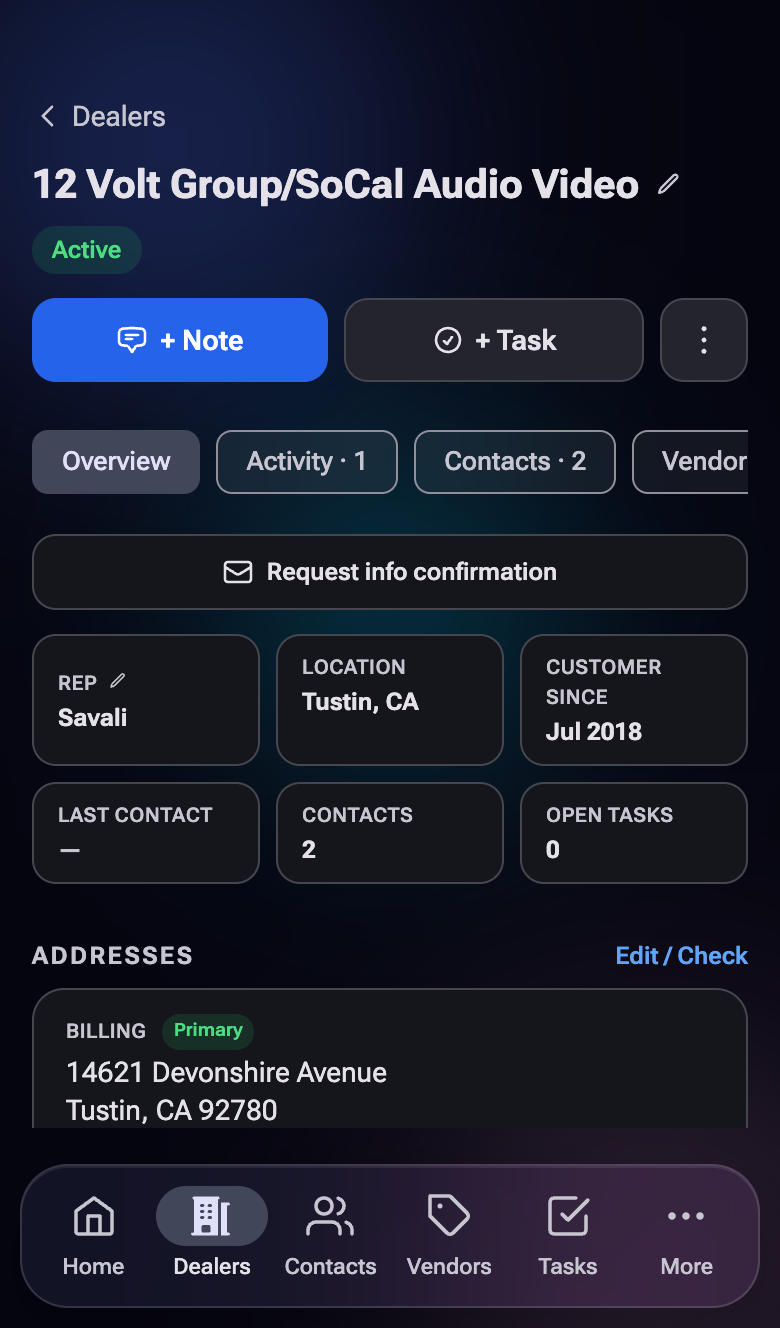
Tabs (swipe ↔ or tap)
- Overview — Address, buying group, account type, assigned rep, primary contacts, last activity. Quick-edit buttons for address / name / rep.
- Activity — Every note, call, email, and visit, newest first. Tap a row to open in the Log Note editor.
- Contacts — People at this dealer. Primary contact is starred. Tap + to add a new contact pre-linked to this dealer.
- Vendors — Which manufacturer lines this dealer carries, with tier / status per line. Expand a vendor row to see program-specific details.
- Competition — Lines this dealer does not carry that we know their peers do. Useful for opportunity-spotting.
- Tasks — Open tasks linked to this dealer.
- Pipeline — Opportunities tied to this dealer, with stage, value, and close date.
Editing & lifecycle actions
- Edit name / DBA — tap the name in the page header.
- Edit address — tap the address tile (Smarty-validated).
- Assign rep — tap the Rep stat tile to pick a different MTA rep.
- Request info confirmation (stewards only) — full-width button at the very top of the dealer detail page (envelope icon). Generates a tokenized link, emails it to the dealer's primary contact, and shows a bottom sheet with the link to copy or open. See Confirm Info link.
- Archive — soft-archive the dealer. Reversible — they show with the "Show archived" toggle on the list page.
- Delete — hard-delete (rarely used; archive is the default).
Instead of asking a new dealer for their info over email and typing it in yourself, hit Request info confirmation at the top of their detail page. They get a navy-and-gold form, fill it out themselves, and the response lands in the Approve Queue for you to review before it touches the live record.
Status filter chips, tier-color tints, 90-day stale filter, doc vault per dealer, and bulk import polish. The Joint Visits theme adds a Vendor Visits tab here that pairs with a Dealer Visits tab on Vendor pages — same trip, both sides.
5. Contacts #
Contacts are people — usually employees at a dealer or a vendor, sometimes industry contacts who don't belong to a single company. Every contact lives on its own page, can be pre-linked to a dealer or vendor (or both over time), and shows up everywhere that company shows up.
The list page
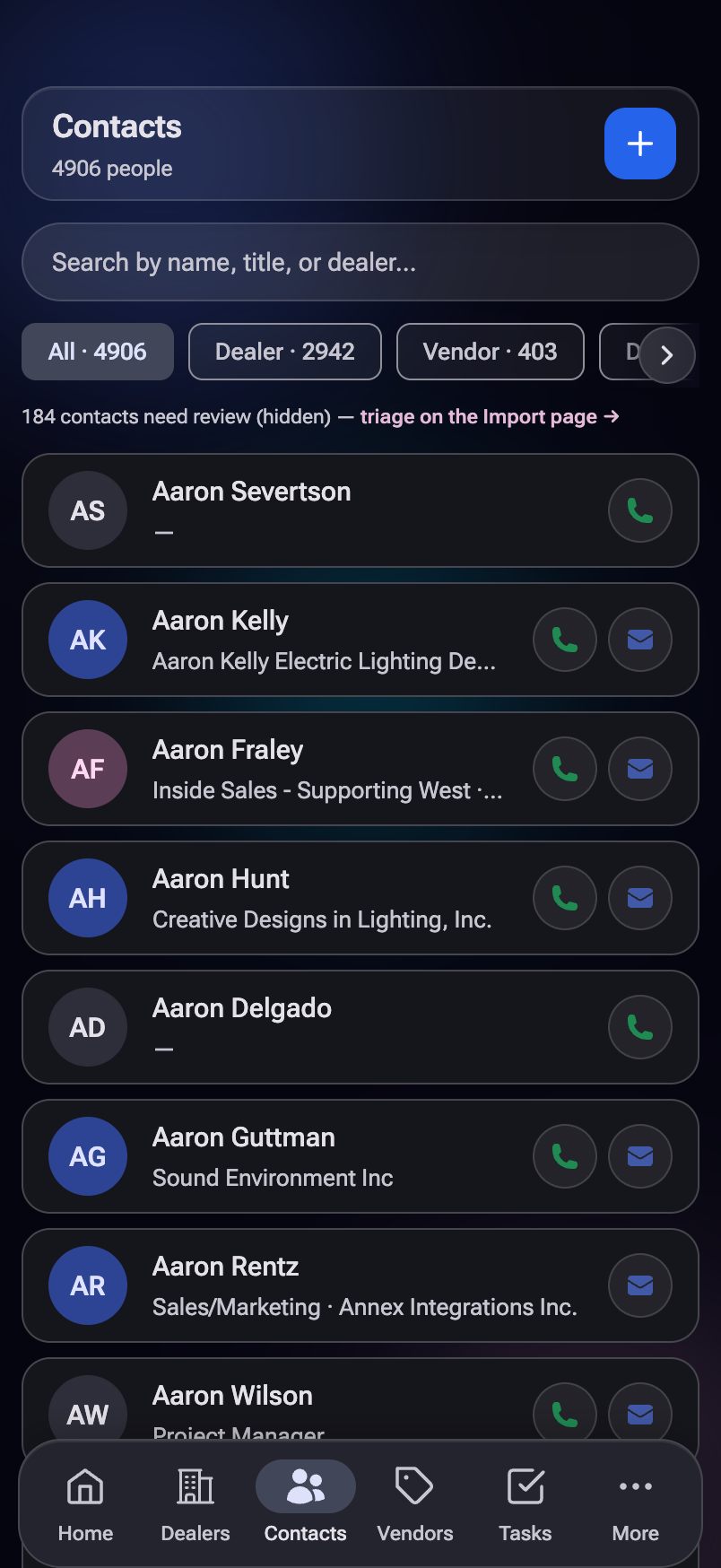
Controls
- Search bar — matches first or last name.
- + button (top right) — opens Add Contact modal.
- Quick-filter chips — All, Dealer (contacts linked to dealers), Vendor (contacts linked to vendors), Industry (unaffiliated; small set today).
Each row shows
- Full name (first + last)
- Title / role at their company
- Company name (dealer or vendor)
- Email + phone if we have them
Adding a contact
Tap the + button on the Contacts page and choose Add Contact. One flow handles both typing and pasting, and saves directly — there's no approval step:
- Paste to Autofill (optional) — paste an email signature or business card and tap Review It with AI to fill the fields automatically. Or just type them in.
- Duplicate & transfer detection — it looks for an existing contact by email or name. If the person is already in the CRM — for example they moved from one vendor to another — you'll see an Already in the CRM banner offering Transfer, which moves the existing record to the new company and keeps all their history instead of creating a duplicate.
| Field | Notes |
|---|---|
| First name *required | |
| Last name | Optional. |
| Title | Their role — "Owner," "Buyer," "Installer," etc. |
| Phone, Email, Mobile | Optional but recommended. |
| Company | Pick a dealer, vendor, distribution branch, or industry company — or leave blank for a standalone contact. If you opened the form from a detail page, this is pre-filled. |
| Primary contact ✓ | Mark this person as the primary contact for the company. Only one primary per company; checking this box on a new person unsets the previous primary. |
The contact detail page
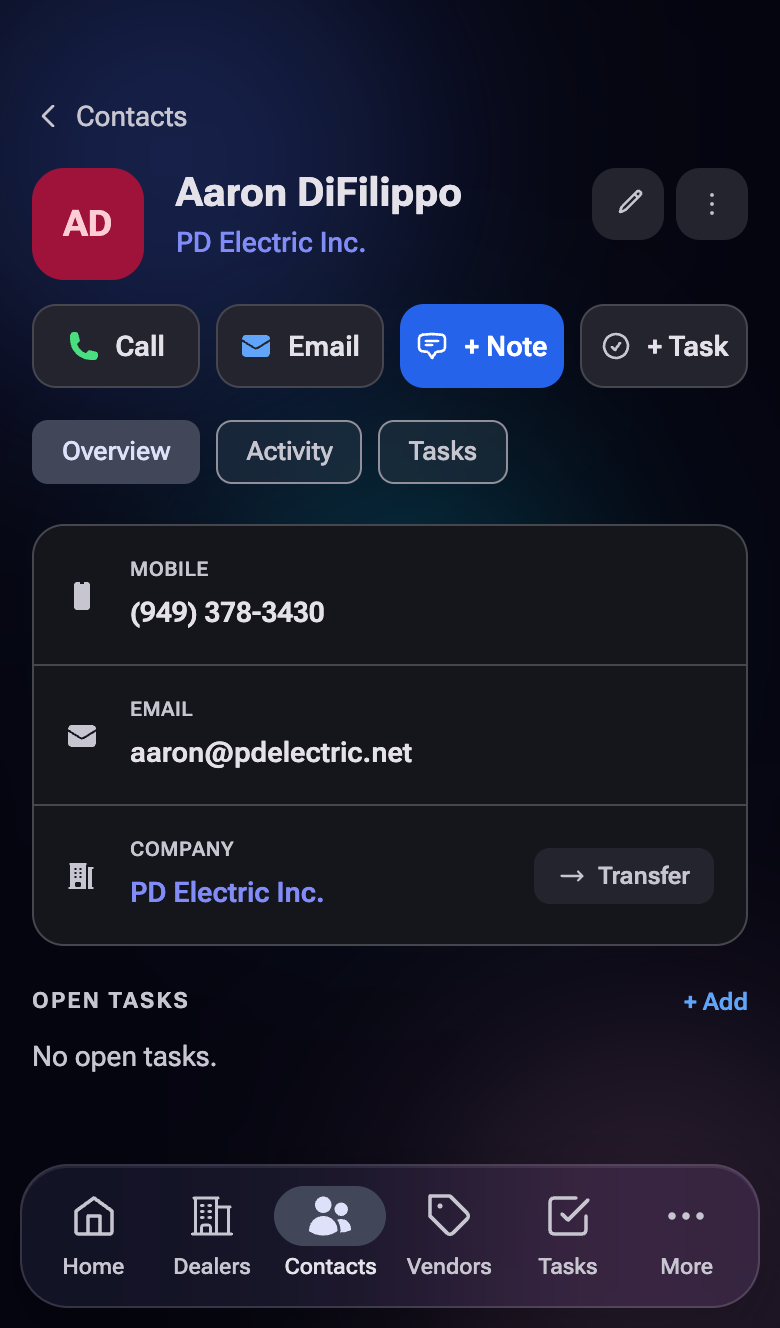
Tabs
- Overview — Name, title, email, phone, mobile, linked company, primary badge, last activity.
- Activity — Every note tied to this person, newest first.
- Tasks — Open tasks linked to this person.
Actions
- + button → Log a note or add a task pre-linked to this contact.
- Three-dot menu → Edit contact info, change linked company, archive, delete.
People change jobs. Don't delete a contact when they leave a dealer — use Change linked company to point them at their new employer. You keep their history; we just re-target the relationship.
Bulk contact import, birthday reminders, polished transfer-flow when someone changes companies, and extending the contact type to attach directly to distribution branches (not just dealers/vendors).
6. Vendors #
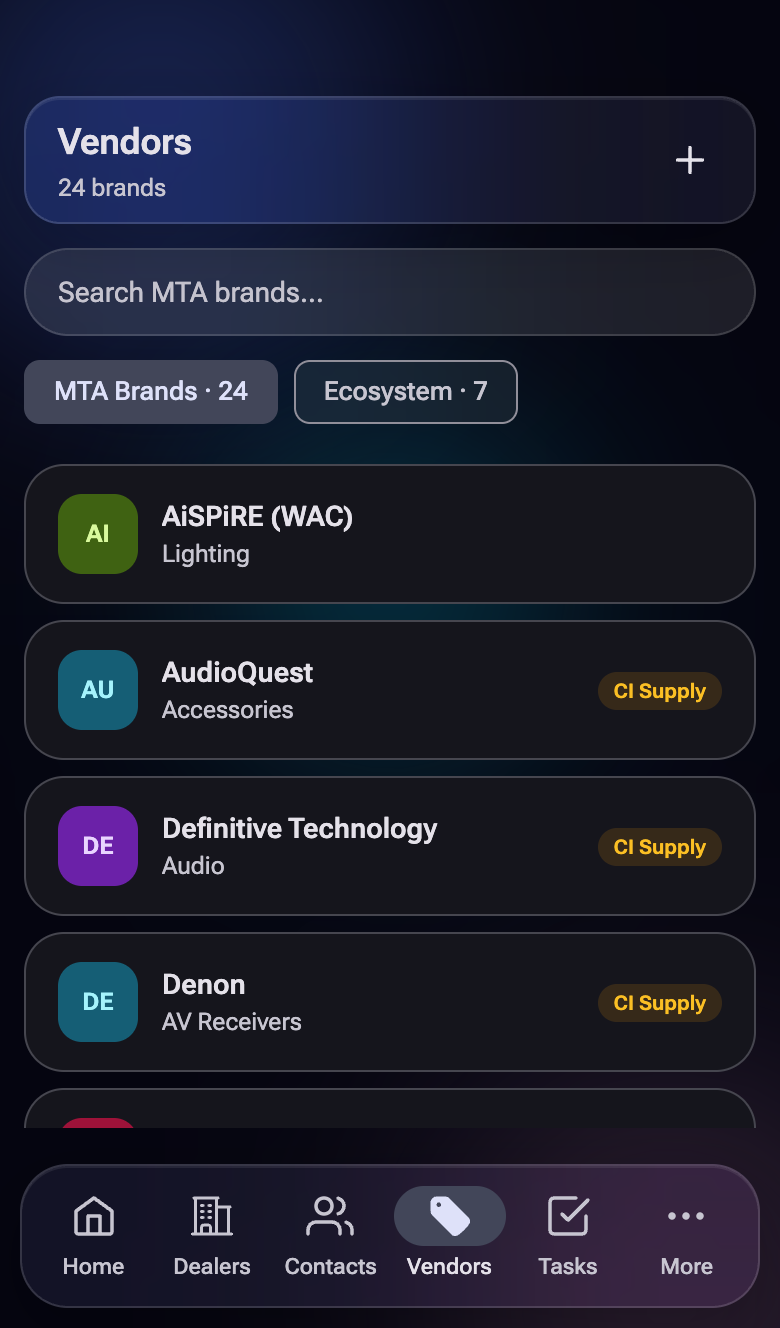
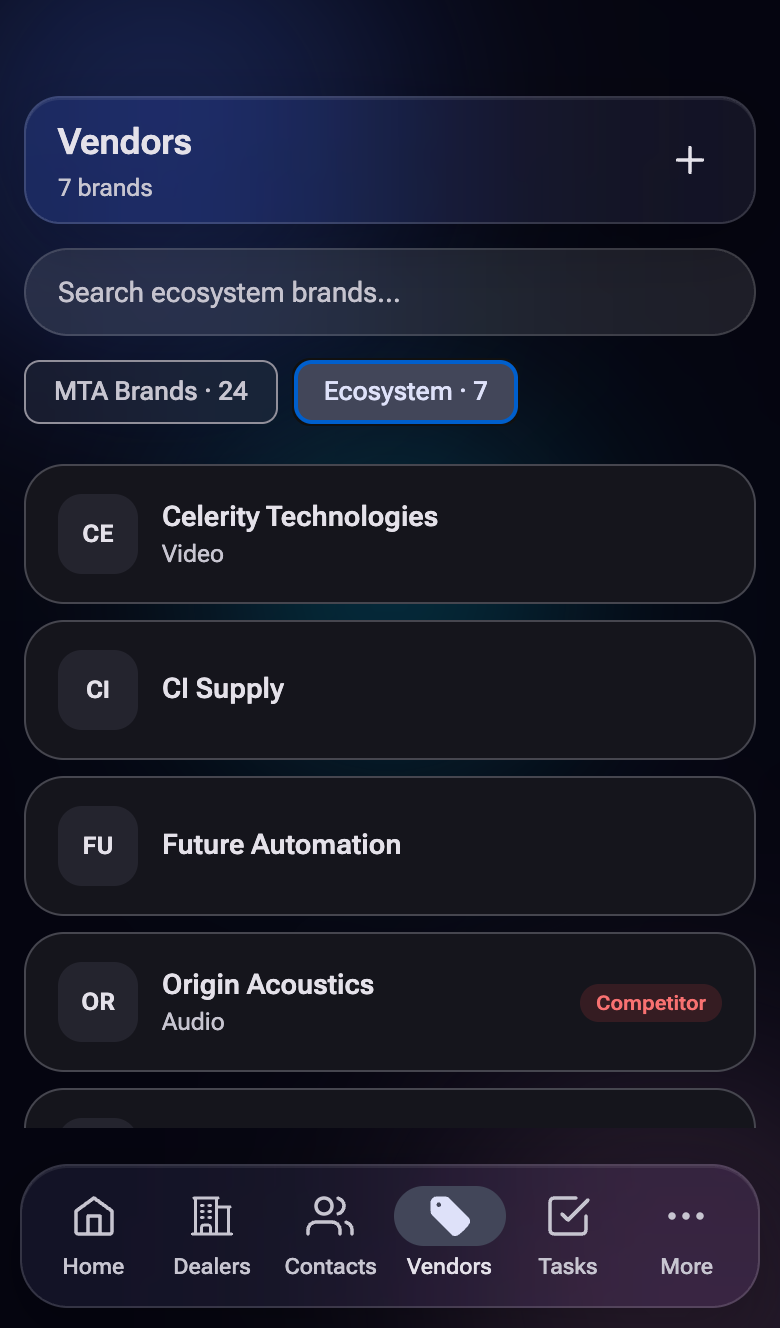
Vendors are the manufacturer lines we work with — split into two categories. MTA Brands are the lines MTA actively represents (Sonance, AudioQuest, Sound United, etc.). Ecosystem brands are non-MTA-repped manufacturers we still track for context (competitor lines, partner brands, brands dealers care about).
The list page
Two tabs
- MTA Brands — what we rep. Each row: short name, category, deterministic-color initials avatar.
- Ecosystem — everyone else we track. Same row layout.
The + button opens a different modal depending on which tab is active: Add MTA Vendor (for brands we rep) or Add Ecosystem Brand (everything else).
How to tell the difference fast
If you're not sure whether a brand belongs in MTA Brands or Ecosystem, check our line card. If we rep them, MTA Brands. If we don't, Ecosystem. Re-categorizing later is fine.
Avatar colors
Each vendor's initials avatar gets a deterministic color based on a hash of the name — same brand, same color, every time. Helps the eye lock onto familiar logos in long lists.
The vendor detail page
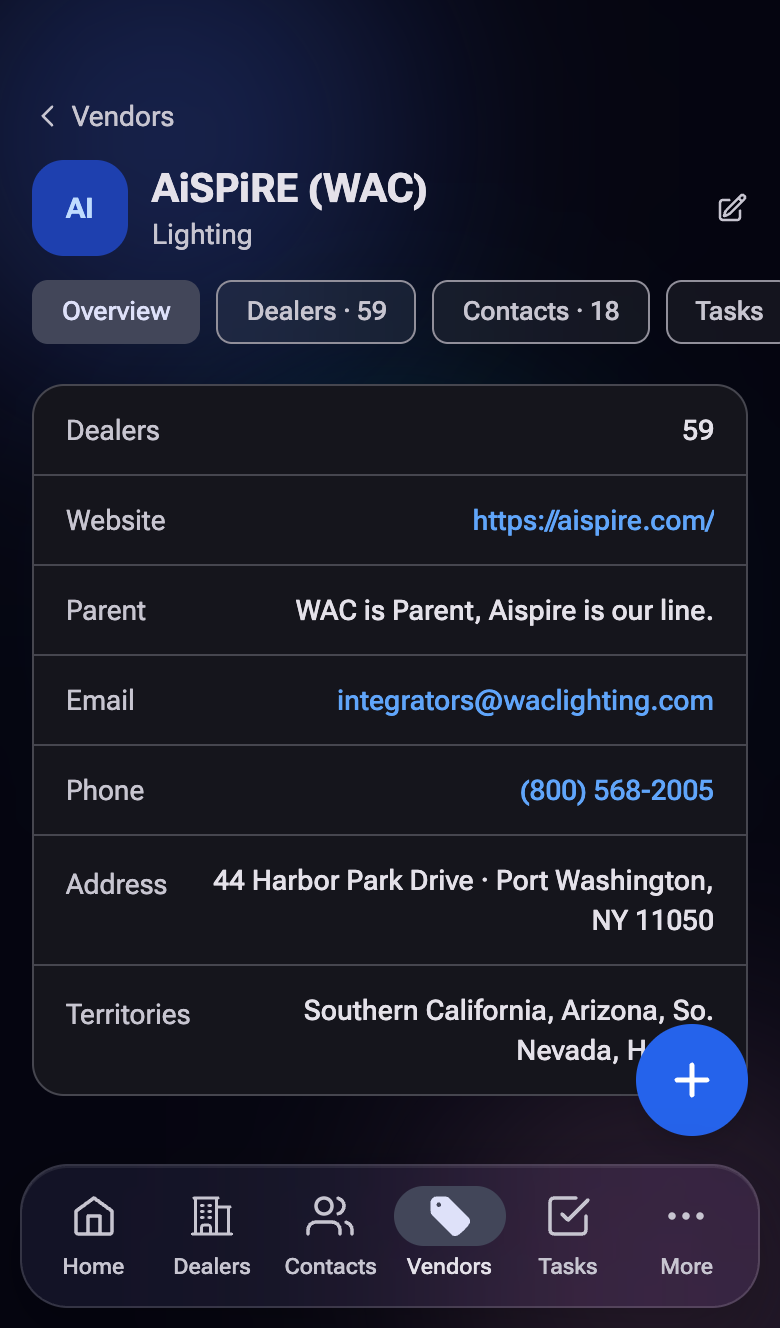
MTA Vendor tabs
- Overview — Name, short name, category, address, contact info, status.
- Dealers — Which dealers carry this line, with each dealer's tier and status. Tap a row to expand and edit.
- Contacts — Sales contacts at the manufacturer.
- Tasks — Open tasks related to this vendor.
- Notes — Activity / notes log.
Ecosystem Vendor tabs
- Overview — Name, territory, coverage.
- Dealers — Dealers in the territory.
- Contacts — Territory contacts.
- Notes
- Field Intel — Competitive notes & market intel. Ecosystem only.
Vendor identities worth knowing
| You'll see | It's really |
|---|---|
| Masimo Program | Sound United (Denon · Marantz · Polk · Definitive Technology). One vendor record, four brand identities under one program. |
| Legrand Shading Tiers | Draper. Note: Draper line is being archived end of May 2026 — skip Draper-specific follow-up work going forward. |
| Sony · Future Auto · Vantage | Map 1:1 to vendor records. No aliasing. |
On the dealer detail's Competition tab, you see vendors that peers of this dealer carry but this dealer doesn't. A vendor isn't globally "the competition" — it's contextual to who's looking.
Playbooks & Presentations (sales kit per vendor), Vendor Demo Requirements, distribution-parent grouping (CI Supply's 7 brands collapsed under one parent), status filter chips, and tier-color tints across the dealer-vendor matrix.
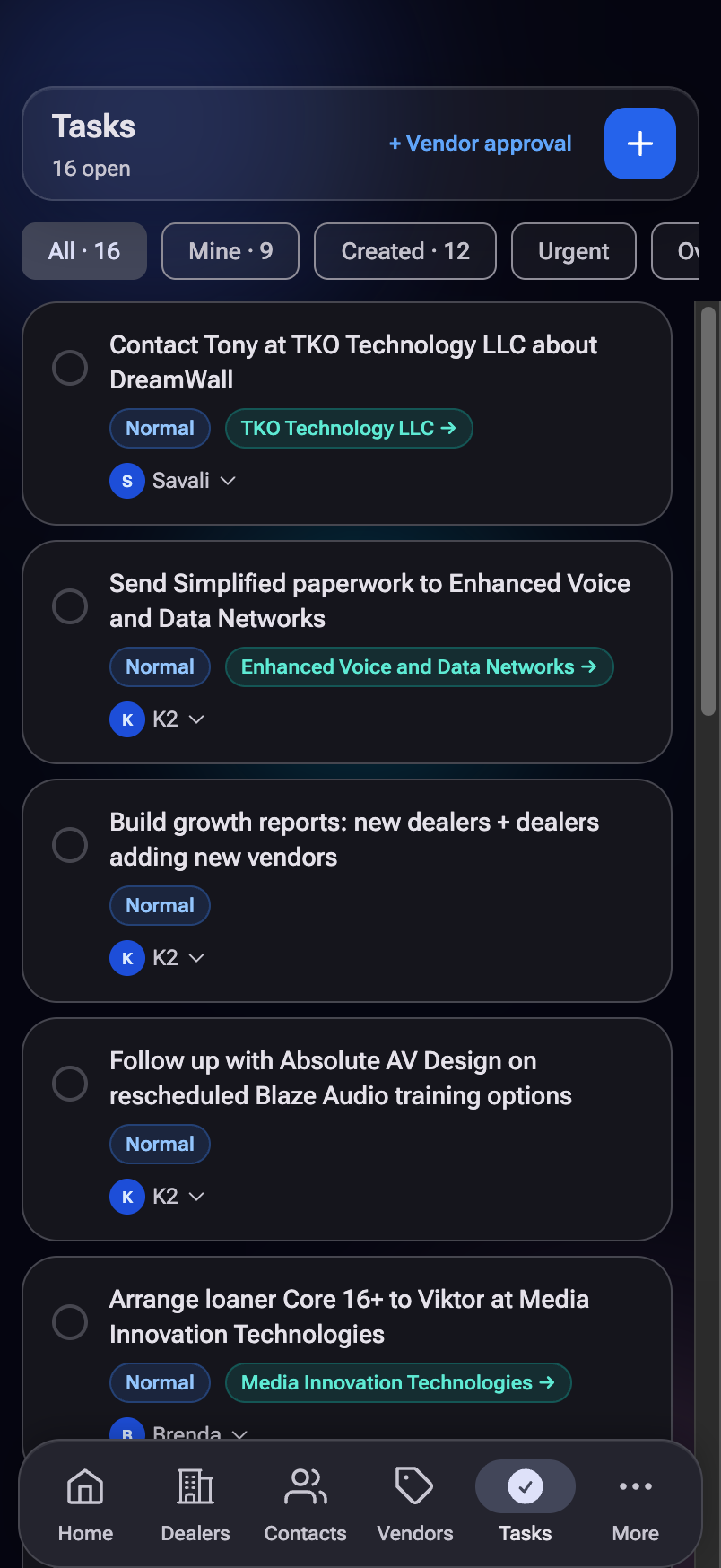
7. Tasks #
Tasks are the team's shared to-do list. Anyone can create one, assign it to anyone, link it to any dealer / vendor / contact, and watch it show up in everyone's inbox. The Tasks page is where you live when you're working a to-do list; @-mentions are how you fan tasks out without manually picking fields.
Filter chips
| Chip | Shows |
|---|---|
| All | Every open task across the team |
| Mine | Tasks where you're the assignee |
| Created | Tasks you created, including ones you delegated |
| Urgent | Open tasks with Urgent priority |
| Overdue | Open tasks past their due date |
| Done | Completed tasks |
Mine vs Created — different questions: Mine = "what's on my plate?" · Created = "what did I delegate?" A task you created and assigned to yourself shows in both, which is correct.
Creating a task
Tap the + Task button — available from the Tasks page header, the Home Quick Actions, the dealer/contact detail pages, and the FAB. Where you open it from affects which fields are pre-filled:
| Where you tap + | What pre-fills |
|---|---|
| Dealer detail | Linked Account locked to that dealer |
| Contact detail | Linked Account locked to that contact |
| Tasks page or Home | Nothing pre-filled — you pick |
Fields
- Task *required — the task statement. Supports
@-mentions (see below). - Urgency — Urgent / High / Normal / Low. Defaults to Normal.
- Due Date — optional.
- Assign To — one MTA teammate (the owner). Defaults to Unassigned.
- Also Notify — additional teammates to notify (not owners).
- Linked Account — the dealer / vendor / contact this task is about.
- Mentions — secondary entities the task involves. They'll see this task on their detail pages.
- Notes — freeform context. Supports
@-mentions.
Auto-defaults from the Title field
The Task title field has two smart defaults. Both fire from @-mentions in the title only — the Notes field never auto-defaults.
Auto-link the primary entity
@-mention a dealer, vendor, or contact in the title → that entity becomes the Linked Account automatically.
Auto-assign the owner
@-mention a teammate in the title → that teammate becomes the Assigned To owner automatically.
Worked example
You type: Beth follow up with @AVKing on @Sonance pricing
Result:
- Assigned To: Beth (auto-assigned, first
@-teammate typed) - Linked Account: AV King (auto-linked, first
@-entity typed) - Mentions: Sonance (typed after AV King, so it goes to Mentions)
Rules
- Title only. Notes never auto-defaults — it's freeform context, not a routing signal.
- First-typed wins. Both for "who gets assigned" and "what gets linked." A second
@-teammate goes to Also Notify; a second@-entity goes to Mentions. - Only fills empty slots. If you've manually picked an Assignee or Linked Account, auto-default skips.
- On Dealer / Contact pages, the Linked Account is already locked — auto-link doesn't apply. Auto-assign still does.
- Delete the
@to undo. Removing an@-mention from the Title reverses whatever it auto-filled (assignee cleared, linked account cleared, etc.). Title only — deleting an@from Notes does not reverse anything.
Other ways to undo
- Clear Linked Account: tap the X on the blue chip. The next
@-entity in the title will auto-link again. - Clear Assignee: tap Unassigned in the Assign To row. The next
@-teammate in the title will auto-assign again.
Editing or completing a task
Tap any task row to open the full detail sheet. From there you can edit any field — title, urgency, due date, status, assignee, notify list, notes, linked account. Plus:
- Mark Complete — flips the task to Done, records timestamp + who completed it.
- Undo — re-open a completed task.
- Delete — soft-delete (status becomes Cancelled — recoverable in Supabase, not visible in the app).
- Comments — add a comment thread on the task. Notifies everyone on Assigned + Also Notify.
Fan-out (assign to multiple people at once)
When you assign a task, you can pick a group instead of a single person. The task fans out — one parent task with one child task per teammate. Each child is independently completeable; the parent rolls up status.
- Sales Team — everyone tagged as Sales.
- Office — everyone tagged as Office.
- MTA All — the entire team.
On the Tasks list, fan-out parent rows are expandable — tap to see the child tasks and their per-person status.
The Created filter is the most underused. If you sent a task to someone else, it doesn't show in Mine — but it does show in Created. Skim that filter once a day to keep tabs on your delegations without bugging anyone.
Recurring tasks ("call this dealer monthly"), task templates (saved patterns you can drop in), snooze / defer (push a task out without re-editing), and archiving (clean up the Done filter without losing history).
8. Pipeline #
Pipeline is sales opportunity tracking — every active deal, organized by stage, with a weighted forecast at the top. Reach it via the desktop side nav, or More → Pipeline on mobile, or from your Home My Pipeline stat tile.
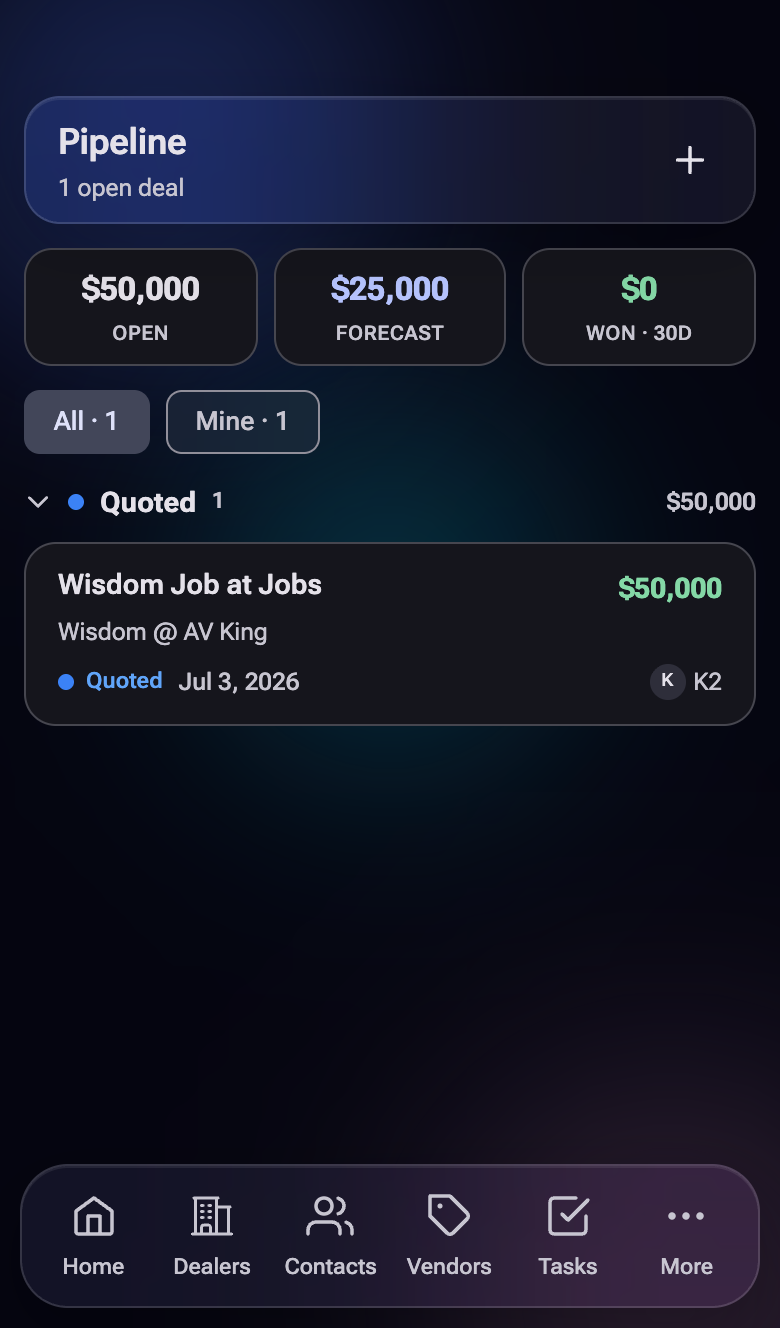
The KPI header
- Open Count — number of opportunities not yet Won or Lost.
- Open Value — sum of estimated value across open opps.
- Weighted Forecast — sum of (estimated value × stage probability). Realistic outlook, not best-case.
- Won (30d) — realized value in the last 30 days.
Filter
All vs Mine — toggle between the team's pipeline and just yours.
Stages
Opportunities move through five open stages, plus two terminal states:
- Prospect — initial lead
- Proposal — we've sent something for them to review
- Negotiation — actively in pricing / terms back-and-forth
- Close — verbal commitment, paperwork pending
- Won — deal closed (terminal, collapsed by default)
- Lost — didn't happen (terminal, collapsed by default)
Each stage is a collapsible section on the page. Won and Lost default collapsed so they don't dominate the view.
The opportunity card
Each opportunity row shows: title, dealer, vendor (if set), estimated value, close date (red if overdue and still open), assigned rep initials, and a stage color badge. Tap to open the Opportunity sheet.
Creating / editing an opportunity
| Field | Notes |
|---|---|
| Title *required | "Whole house · 4-zone install," "Display refresh," etc. |
| Dealer *required | The dealer this opportunity is at. |
| Vendor | Optional — the brand line driving the deal. |
| Estimated value | USD. Used in Open Value + Weighted Forecast. |
| Close date | Your best estimate. Overdue + still open turns the chip red. |
| Assigned rep | Who owns this opportunity. |
| Stage | Where it is in the funnel. |
| Notes | Freeform context. |
Every dealer's detail page has a Pipeline tab showing just their opportunities. Useful when you're prepping for a dealer meeting — open one place, see every active deal with them.
Drag-and-drop stage changes (no more typing), stage-change notifications, filters (by close month, by vendor), and reporting hooks. Once we have ~3 months of pipeline data, the Reporting theme in Phase 3 will graph it for leadership.
9. Voice Notes #
Voice Notes are the headline feature of the CRM. Press record, talk for under a minute, walk away. The app transcribes (Whisper), figures out which dealer / contact / vendor you were talking about, drafts an activity, and queues it in the Approve Queue for you to bless before it lands. No more "I'll log that later" debt.
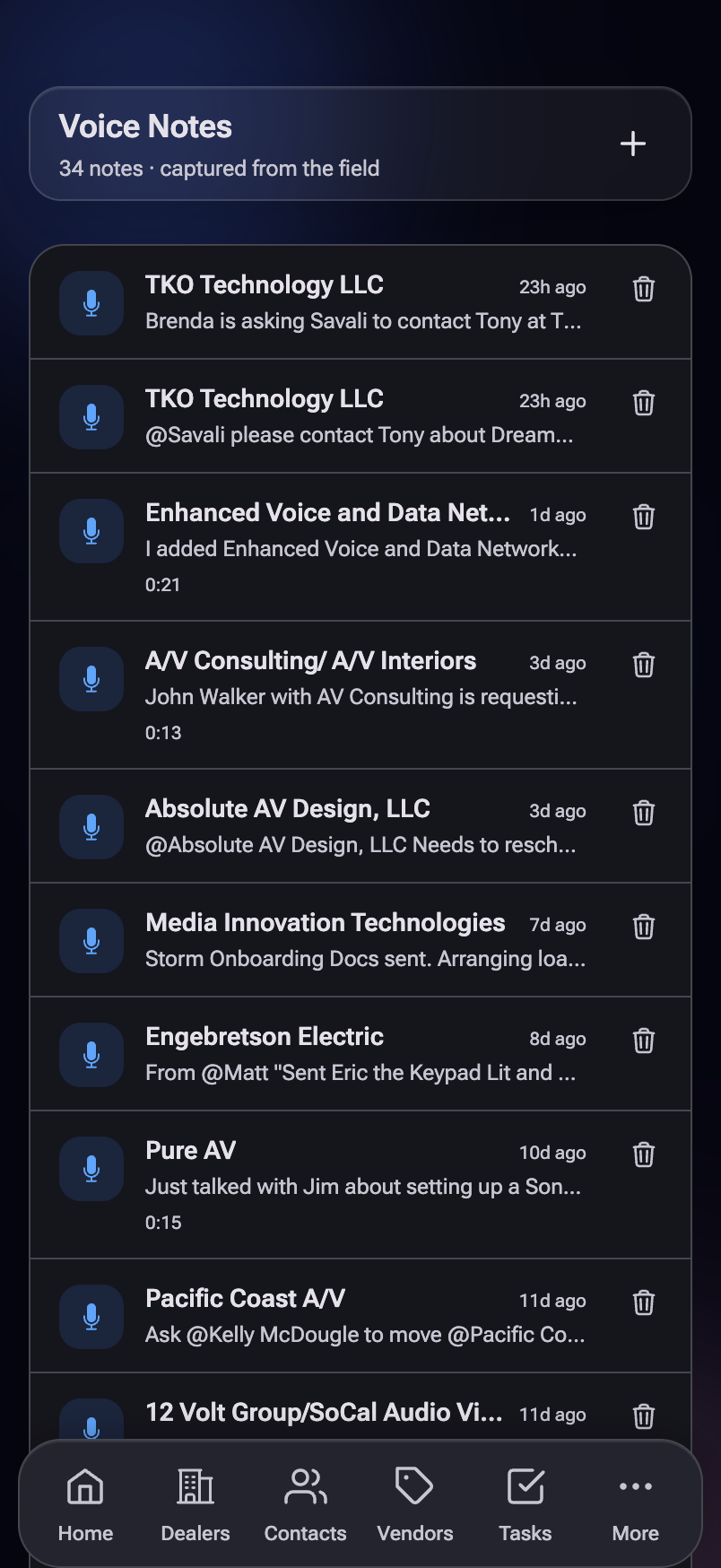
The Voice Notes page is your library — every recording with its transcript snippet, duration, the entity it's tagged to, status badge, and how long ago.
The recorder modal itself opens from anywhere with a + button or the Log Note quick action. The interactive walkthrough below has the full capture-to-approval flow.
Recording a note
- From anywhere, tap the + floating button (Home), the Log Note Quick Action, or the Add note button on any detail page.
- A bottom sheet asks: Voice or Typed?
- Pick Voice. Tap the mic. Talk. The waveform pulses to show audio is being captured.
- Tap the mic again any time to pause (tap once more to resume). When you're finished, tap Done — Transcribe Note. Whisper transcribes within ~5–15 seconds depending on length.
- Review the transcript + AI-suggested fields. Edit if needed.
- Tap Approve → activity lands. Or Reject → it discards.
Voice Notes — auto-tagging dealers & contacts
When you record (or type) a note, the app reads the names you said and auto-links the note to the matching dealer, contact, or vendor in the CRM. You can say the everyday name — "Absolute AV Design," "AV King" — and it still matches even when we store the full legal name ("Absolute AV Design, LLC") or a different DBA. If two records are equally close it leaves the note unlinked rather than guess — just link it by hand on the review screen.
New dealers & contacts are picked up automatically
You don't have to "teach" voice notes about anyone new. The matcher always reads the live CRM list, so a dealer or contact you just added — by hand, through Import, or via a confirm-your-info form — becomes taggable on its own. No setup, no rebuild.
The ~5-minute buffer (the one timing gotcha)
To keep the recorder fast, the app holds the dealer/contact list in memory for about 5 minutes per session instead of re-downloading it every time. So there's one edge case worth knowing:
If you add a brand-new dealer/contact and then record a note about that same one within ~5 minutes, in the same sitting, it might not auto-tag yet.
Two easy fixes:
- Refresh or reopen the app — clears the buffer instantly. (Just waiting ~5 minutes also works.)
- Tag it by hand on the review screen — tap the entity picker, or type
@DealerNamein the transcript.
After that, it's matched automatically like everything else. In day-to-day use (recording about dealers that already exist) you'll never hit this.
Whose dealers & contacts get matched
- Office staff can tag any dealer or contact in the company.
- Sales reps are tuned to their own dealers/contacts — those names are recognized most reliably — but a note about another rep's dealer (the rare cross-territory case) will still tag.
The Voice Notes page
Found at the side nav (desktop) or More → Voice Notes (mobile). It's a library of every voice note you've recorded — transcript snippets, duration, the entity it's tagged to, status badge, and how long ago.
Status badges you'll see:
Tips that pay off
Settings → My Top Dealers lets you pin up to 20 dealers. Those names get sent to Whisper as a vocabulary primer — meaning unusual spellings ("AV Design Group LLC") and proper nouns get transcribed correctly far more often. Five minutes of pinning saves you correction-typing every day.
Open every voice note with the dealer's name: "AV King — Beth said the install for the master suite is pushed to August because they're waiting on shading…". Whisper gets the right entity on the first try, and the matcher locks on faster.
If you're somewhere you can't talk (meeting, store), pick Typed instead of Voice. Skips the transcription step and lands directly in the AI review screen. Same matching, same Approve Queue, no audio.
Deleting a voice note
Each row on the Voice Notes page has a delete button. It hard-deletes the voice note and any pending approval tied to it. Approved activities are not deleted — they live in the activities table as the final record; deleting the voice note just removes the raw audio + transcript.
Auto-drafted follow-up emails and tasks based on what you said in the note ("I told her I'd send the spec by Friday" → drafts the email + the task). Voice-note → Outlook calendar sync once Phase 3's Outlook integration lands.
10. Approve Queue #
The Approve Queue is the safety net between AI suggestions and live data. Anything the system guesses — a transcript, a matched dealer, a new contact from a confirmation form — lands here first. You review, you approve, then it touches the CRM. Reach it from the Home tile or More → Approve Queue.
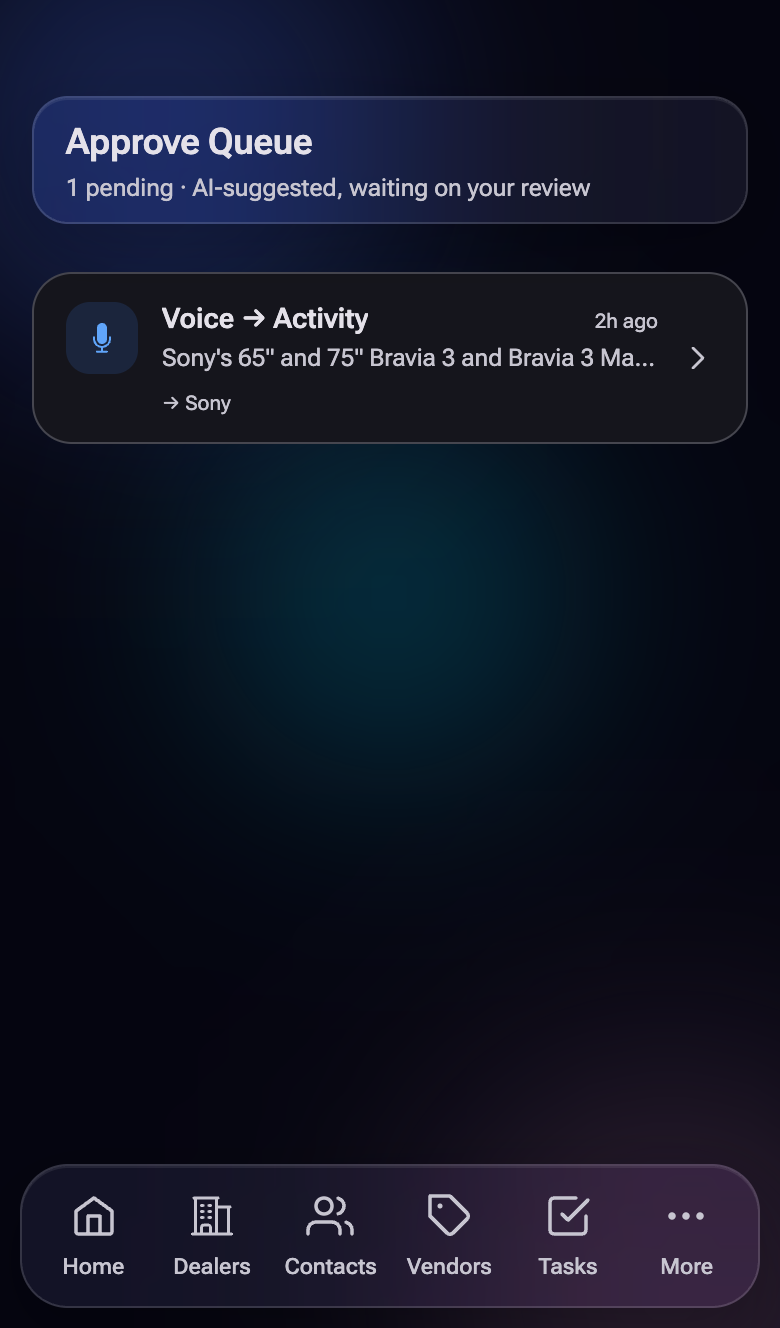
What ends up here
- Voice notes — every recorded or typed note waits here until you approve it.
- Confirmation submissions — when a dealer fills out a tokenized "confirm your info" link, their response lands here for review before touching the dealer record.
- Low-confidence matches — when the auto-matcher isn't sure which dealer you meant, the item routes here so you can pick.
- (Coming soon) — new-dealer creation flows, business-card uploads, and vendor approval will route through here too.
The review flow
Tap a card to open the Review sheet. You see:
- The AI-translated content — what would land if you approved as-is.
- Source details — for voice notes, the original transcript is expandable so you can verify before approving.
- Entity mentions — chips for every dealer / contact / vendor the AI tagged. Tap an X to remove a wrong tag; type
@Namein the body to add one. - Approve / Reject / Edit buttons at the bottom.
Three outcomes
| Button | What happens |
|---|---|
| Approve | Item is saved to the activities table (or to dealers/contacts for confirmation submissions). Two-step — a small confirm sheet asks "Are you sure?" before the write happens, to prevent fat-finger approvals on the bus. |
| Reject | Discards the item. The voice note's raw audio + transcript stay on the Voice Notes page (you can re-record context if needed), but nothing lands in the CRM. |
| Edit | Tweak the body text and entity tags inline before approving. Common — Whisper occasionally misses an unusual name or AI mis-tags an entity. |
Empty state
When there's nothing to review, you see "You're all caught up" with a sparkle icon. The Home tile hides when the queue is empty too — so the only way the Approve Queue gets your attention is when there's actual work.
The queue is small by design. Skim it in the morning with coffee — most items take under 10 seconds to bless. Letting it pile up hurts because old voice notes get harder to remember the context for.
Full Inbox + Detail review layout (today's UI is intentionally minimal). New routes will flow through: new-dealer creation, business-card no-match, duplicate detection, vendor approval. Once v1 ships, every "AI guessed something" event in the app routes through one consistent UI.
11. Activity Feed #
The Activity Feed is a real-time stream of every note, call, email, task, and visit logged across the CRM — by anyone, for any account. Useful for staying aware of what the team's doing without bugging anyone. Reach it via the desktop side nav, or More → Activity Feed on mobile.
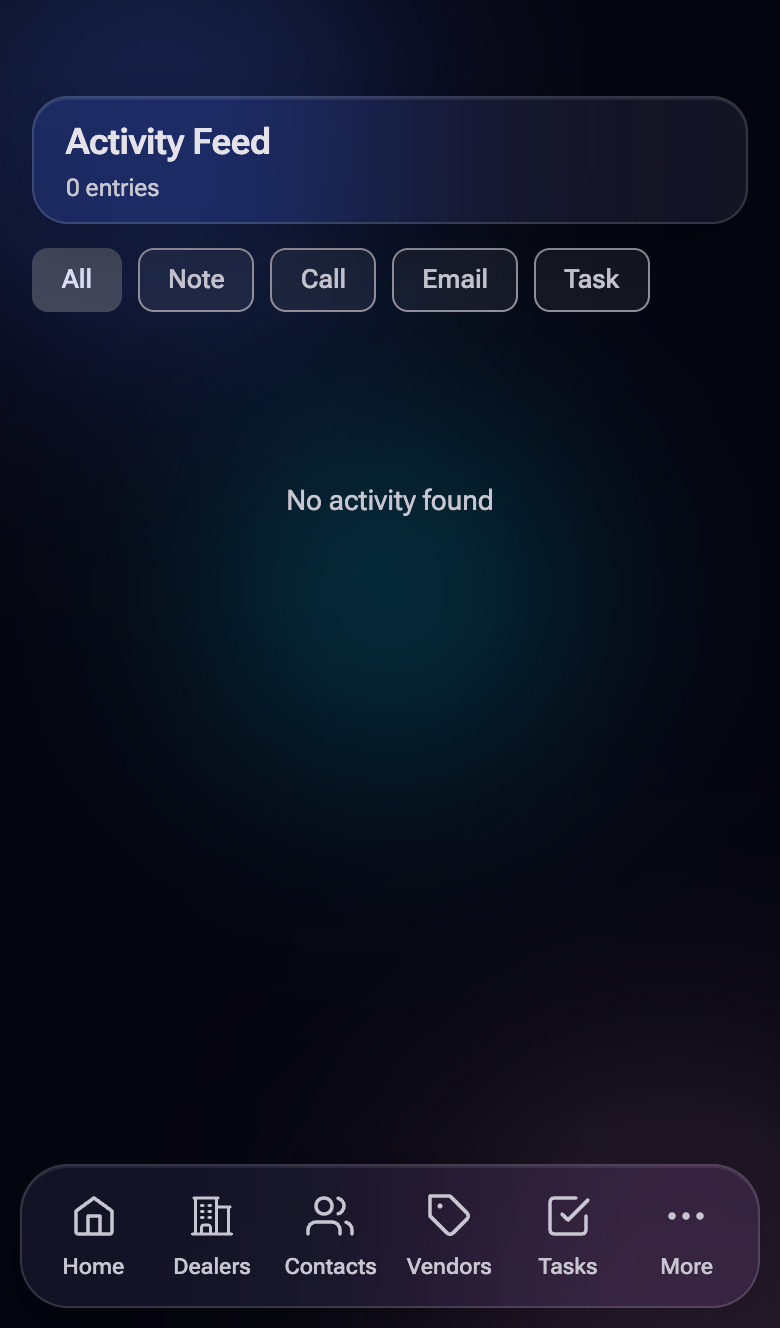
Filter tabs
- All — everything
- Note
- Call
- Task
Activity row anatomy
- Type icon (color-coded by method)
- Entity name (dealer / vendor / contact / "General" if unlinked)
- First ~80 chars of the body
- Time ago
- Tap a row → jumps to the linked entity
Activity type colors
No pagination yet — the feed caps at the most recent 50 activities. For long-tail history on a specific account, go to the dealer / vendor / contact detail page → Activity tab.
Infinite-scroll pagination, per-user filter ("only show my team's activity"), and date-range jump. Lower priority — most reps use entity detail pages for deep history, not the global feed.
12. Notifications #
Your personal inbox for everything the CRM wants to tell you — task assignments, @-mentions, deal-stage changes, overdue alerts. Find the bell icon in the Home header (badge shows unread count) or open More → Notifications.
Get notifications on your phone & computer (push)
The CRM can buzz your phone or pop a banner on your computer even when the app is closed — task assignments, @-mentions, and the Monday-morning digests all arrive as real notifications. One thing to understand up front: you enable this once per device. Turning it on on your phone does nothing for your laptop, and vice versa — each phone and computer enrolls itself.
Setup (about 20 seconds per device)
- On the device, open the CRM and go to More → Settings → Push Notifications.
- Tap On. Your browser asks permission to show notifications — choose Allow.
- Tap Send Test Notification. Within a few seconds the device should buzz or show a banner. If it does, you're done — repeat on your other devices.
Per platform
| Device | Notes |
|---|---|
| Android phone | Works in Chrome or the installed home-screen app. Nothing extra needed. |
| Windows / Mac | Works in Chrome and Edge, tab open or not (browser itself must be running). See the gotcha below about a second permission gate. |
| iPhone / iPad | Apple requires the app to be installed first: Safari → Share → Add to Home Screen, then open the app from the home screen icon and enable there. The Settings page reminds you if you're not set up yet. |
On Windows and Mac, allowing notifications for the site is only half of it — the operating system separately controls whether the browser may show banners at all. If the test sends but nothing appears: Mac → System Settings → Notifications → Google Chrome → Allow (and pick Banners or Alerts — and check Focus/Do Not Disturb isn't on). Windows → Settings → System → Notifications → make sure Chrome is allowed (and check Focus assist). Banners on a Mac also auto-dismiss after a few seconds — check Notification Center (click the clock) to see ones you missed, or switch Chrome's style to "Alerts" to make them stick.
If the OS permission is right and pushes still don't show, the browser's push connection is usually stuck: fully quit and reopen the browser (Cmd+Q / close from the system tray, not just the window) and test again. Corporate VPNs and strict firewalls can also block the push channel — try once on another network to rule that out. Still stuck? Tell Kevin — he can see your device's enrollment and send test pings from the admin dashboard.
The same Settings toggle turns push off for that device only. Notifications always remain in the in-app bell regardless — push is a delivery channel on top, never the only copy.
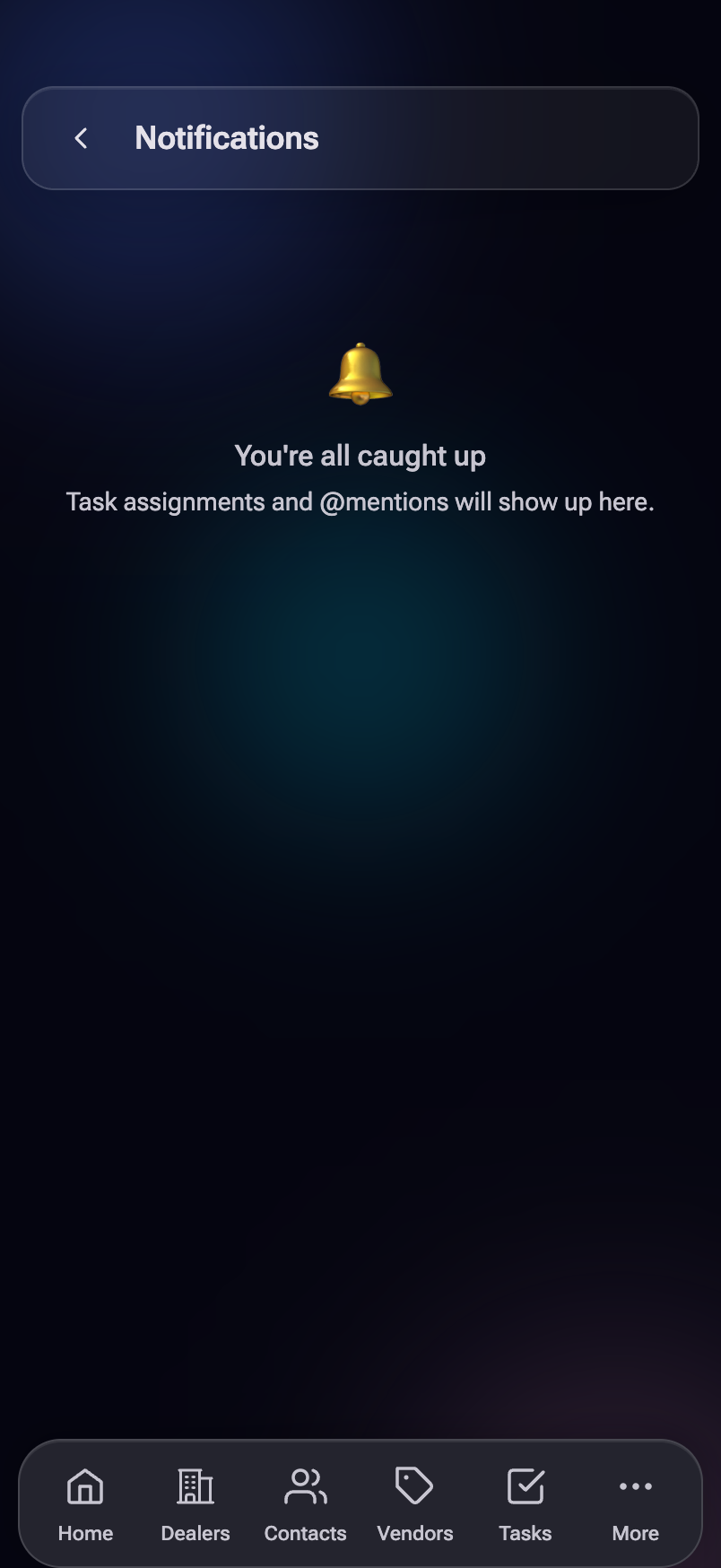
Reading a notification row
- Status dot — color varies by type
- Type kicker — "Task," "Mention," "Alert," etc.
- Title + body
- Time ago
- Bold if unread, dimmed if read
- Tap → marks read AND jumps to the linked entity (if there is one)
Notification types
| Type | When it fires | Tap takes you to |
|---|---|---|
| task_assigned | A teammate assigned you a task | The task detail sheet |
| task_completed | A task you assigned was completed | The completed task |
| task_ready_to_close | A task you own is "Ready" — last subtask done | The task |
| task_overdue | One of your tasks passed its due date | The task |
| tasks_overdue | Digest of multiple overdue tasks | Tasks → Overdue filter |
| opportunity_stage | A deal you own moved stage | The opportunity sheet |
| mention | You were @-mentioned in a note or task | The note / task |
| pre_meeting_brief | Brief content available for an upcoming meeting | The brief (Phase 3) |
| dropped_sales_alert | An open opportunity slipped past its close date | The opportunity |
| demo_gear_overdue | Demo equipment hasn't come back (Phase 3) | The demo record |
| dealer_intake | A new dealer onboarding event needs attention | The dealer |
| feedback_submitted | (K2 only) A teammate submitted feedback | Feedback Inbox |
The badge clears when you mark all read, not when you open the page. Read items still live in the list — they just dim — so you can scroll back to find that mention from last week.
Email mirrors for every notification (so you can manage from your inbox if you're not in the app), per-type subscription preferences (silence the noisy types), and group-level routing via the Tagging system.
13. Distribution #
Distribution is the channel-partner side of the business — distributors like Snap One, ADI, and KOA, the regional branches they operate, and the people who run those branches. Different shape than dealers (one parent, many child locations), so it gets its own page. Reach via desktop side nav, or More → Distribution on mobile.
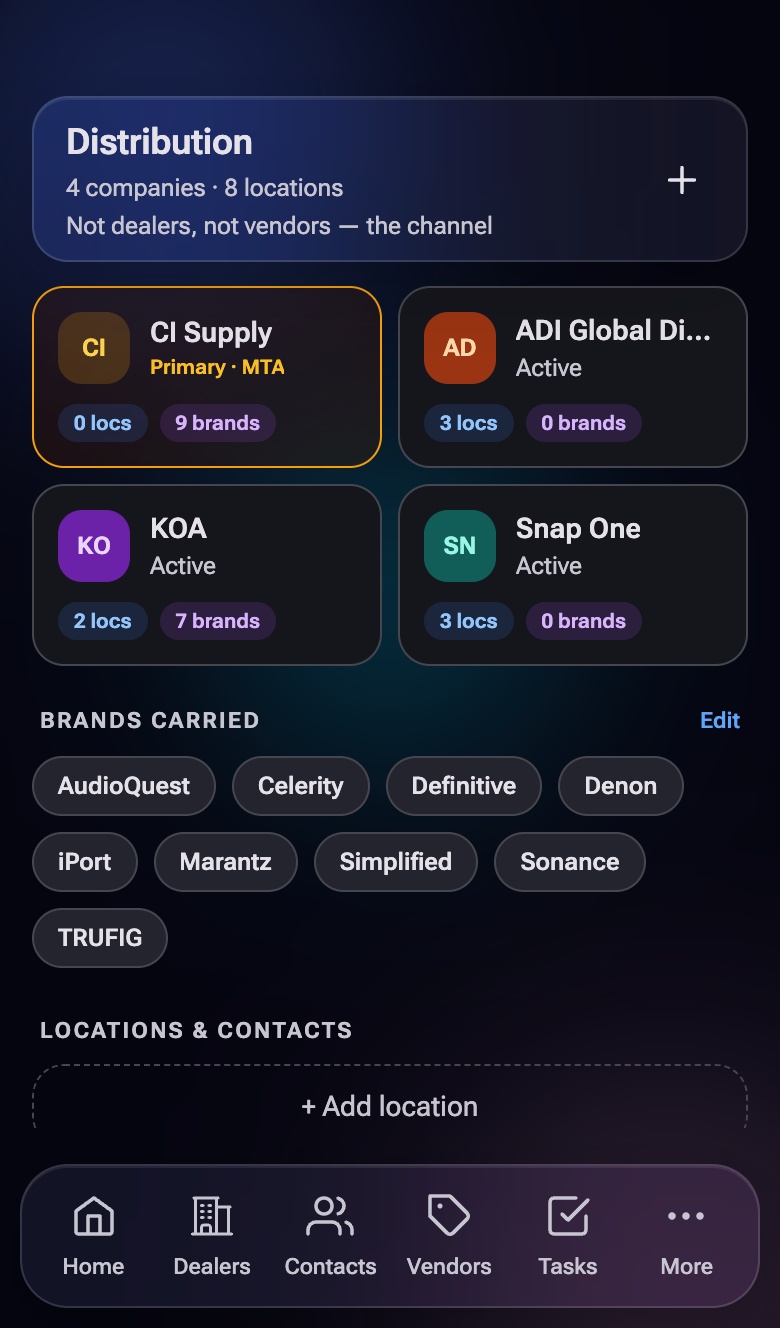
The three-level shape
- Distributor — the corporate parent (Snap One, ADI, etc.)
- Branch / node — a regional location with territory coverage
- Contacts — people who work at that branch
Each branch shows
- Branch name + address
- Territory coverage
- Last activity status dot
- Assigned MTA rep
- Open task count badge
- List of people, with the primary contact starred
Adding things
| Button | Opens |
|---|---|
| + Distributor | New top-level distributor (corporate) |
| + Branch | New location under an existing distributor |
| + Contact | New person at an existing branch |
| Edit brands | Assign which vendor lines this distributor carries (affects the dealer ↔ vendor relationship grid) |
When you're trying to find "who's our person at ADI Phoenix?", search distribution by branch name (e.g. "Phoenix"). The branch card has the contacts already attached, which is what you actually want.
Branch profile detail pages (today's UI is list-only), brands-under-distributor grouping (e.g. CI Supply's seven brands collapsed under one parent), and visit tracking per branch.
14. Team #
The Team page is the MTA roster — who's on the team, what they do, and what territory they cover. Read-only from this page (role and team changes happen in the admin console). Reach via More → Team Members.
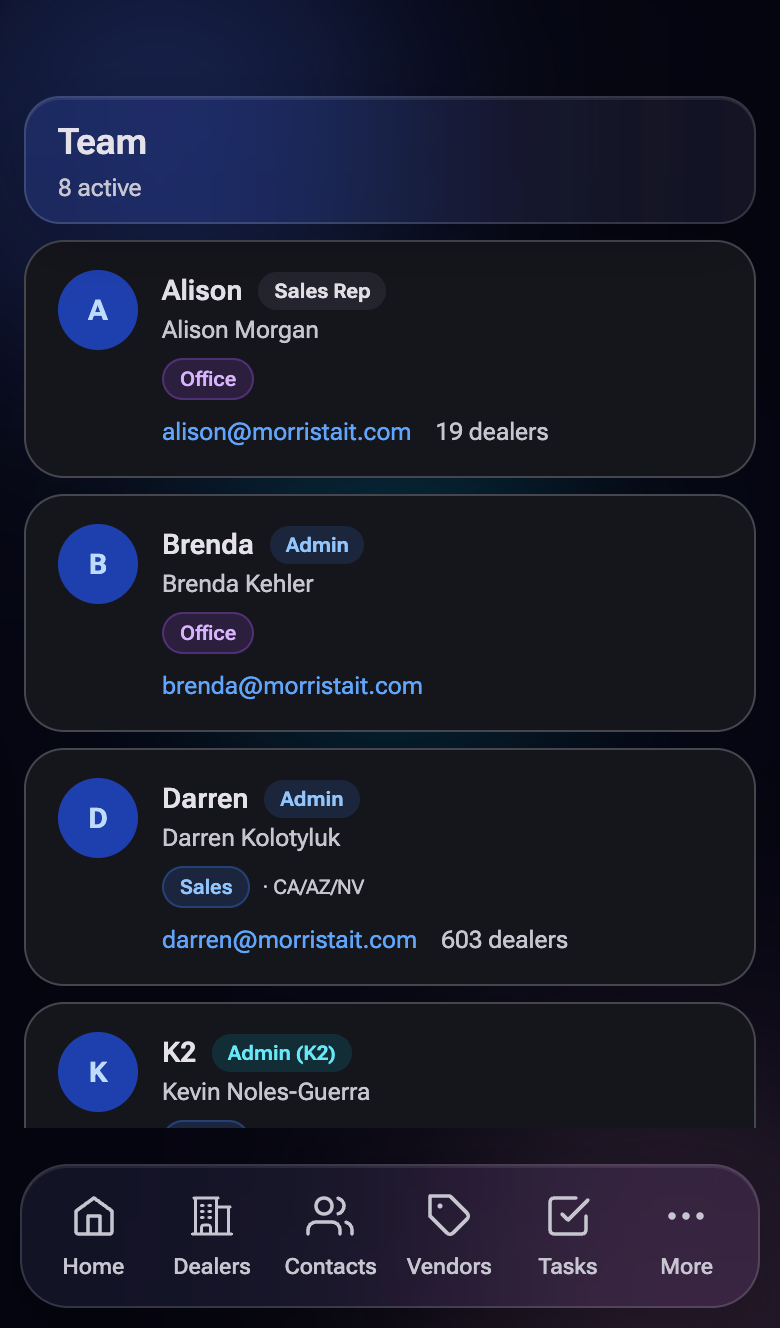
Each team member row
- Initials avatar
- Display name (what you call them) + full name
- Role badge — "Admin (K2)" · "Admin" · "Sales Rep"
- Team badges — multiple can apply: Sales · Office · Support
- Territory — e.g. SoCal, AZ, NorCal
- Dealer count — how many they're currently assigned
Inactive members render with reduced opacity at the bottom of the list.
Role badges
Team badges
Different from roles — a person can be on multiple teams. Used for fan-out task assignment (see Tasks):
If you need to forward something outside the app and you're not sure of the right address, the Team page has every active person's work email. Faster than digging through inboxes.
15. More menu #
The "More" tab in the bottom nav is the catch-all hub. It holds your profile card and everything that doesn't fit in the 5 main tabs. On desktop, most of these have their own side-nav entries — More is mostly a mobile thing.
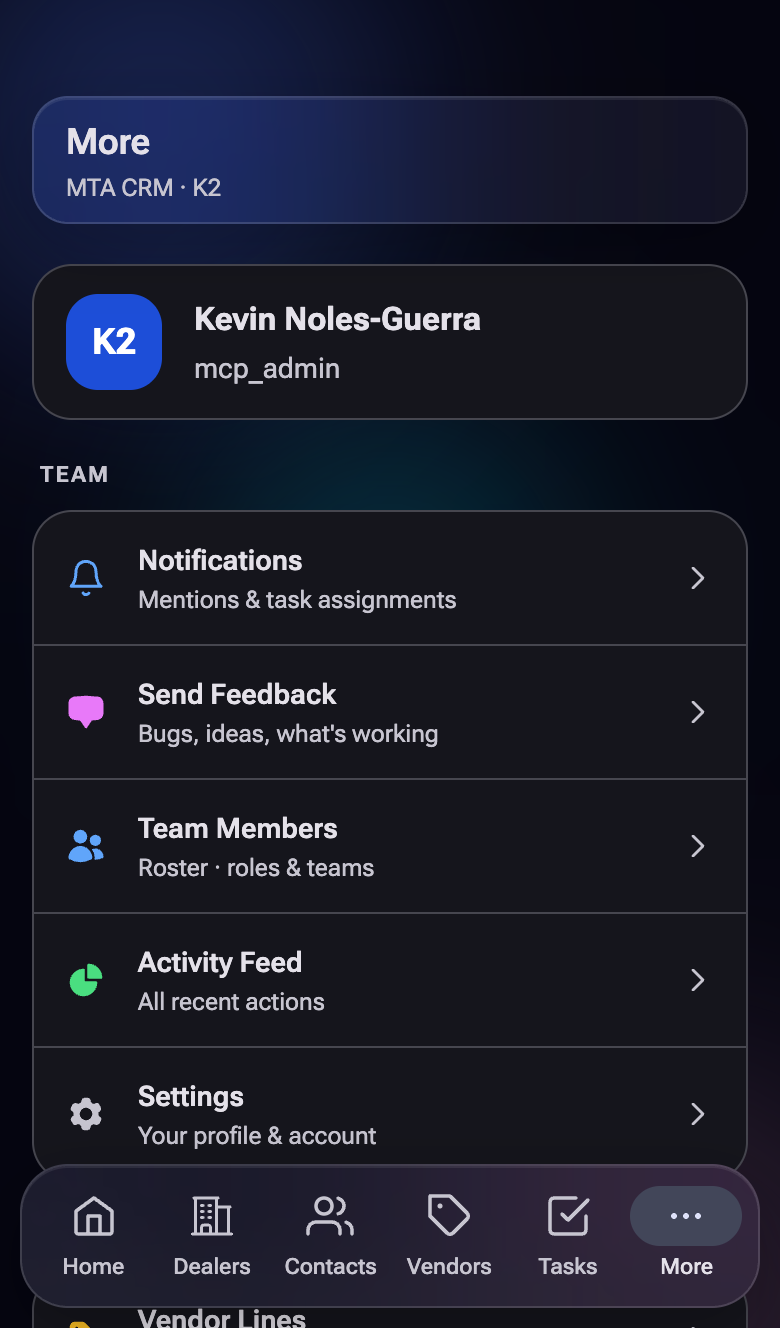
User card at the top
- Your initials avatar
- Full name + role + email
- Sign out button at the bottom of the page
Menu sections
Team
- Notifications — your inbox (badge shows unread count)
- Send Feedback — submit a bug, feature request, or compliment
- Team Members — the roster (Team section)
- Activity Feed — global activity stream
- Settings — your profile, top dealers, theme
Data
- Vendor Lines — Vendors page
- Distribution — channel partners
- SOPs — coming soon, currently disabled
- Calendar — coming soon, currently disabled
- Pipeline — opportunity tracking
Admin (visibility depends on role)
- MCP Dashboard — K2 only
- Import & Reconcile — data stewards only
Footer of the More page
- Sign out — same as Settings → Sign out
- App version — current build (e.g. "v0.2 · Built by K2")
If something looks broken, the version number is helpful when reporting it via Send Feedback — Kevin can tell which build you're on.
If something in the app surprises you, breaks, or seems missing — open More → Send Feedback rather than texting Kevin. It lands in the Feedback Inbox with the source page captured, and gets a tracked response. Faster turnaround in practice.
16. Settings #
Your personal preferences live here. Reach via More → Settings. Two things matter most: My Top Dealers (improves voice-note accuracy) and the dark / light theme toggle.
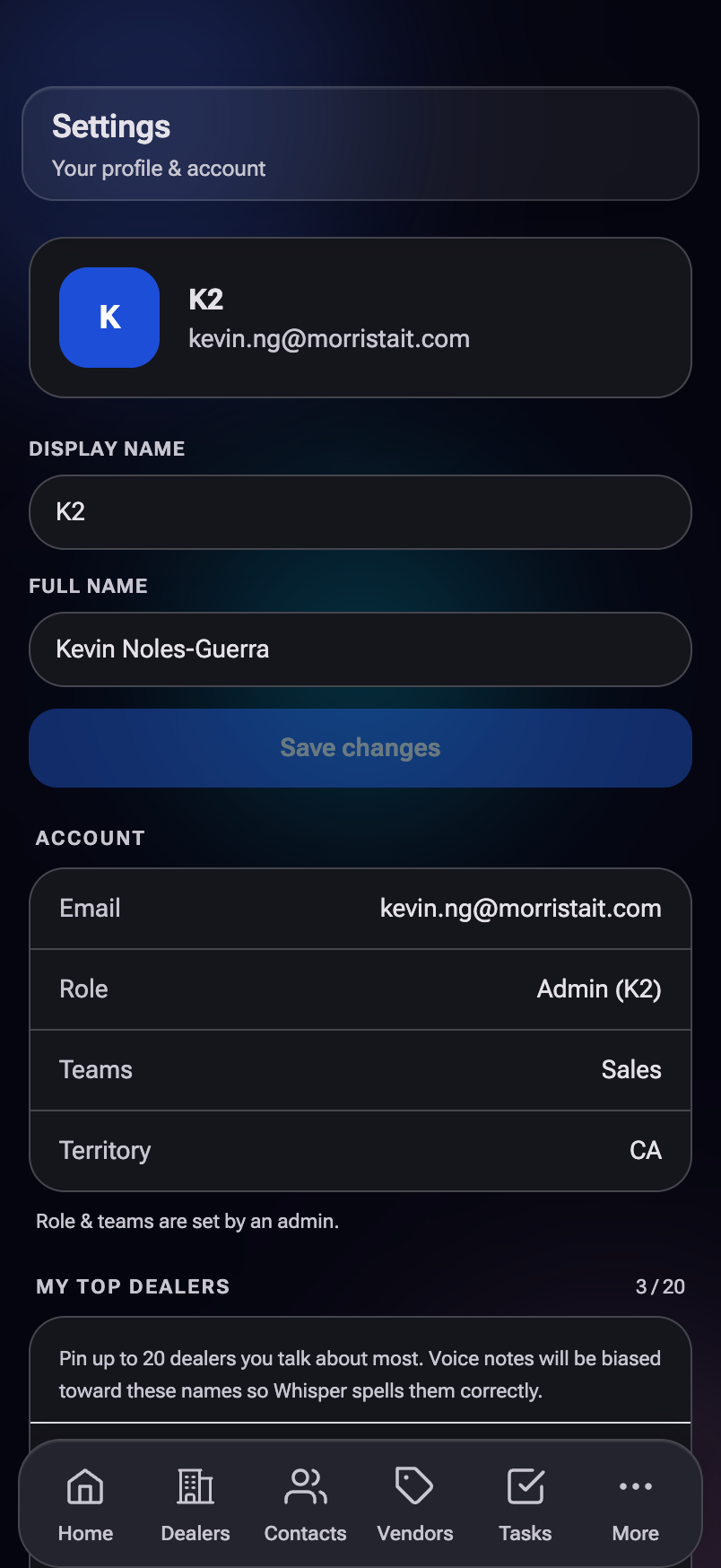
Sections
- Profile — display name + full name (editable)
- Account info — email / role / teams / territory (read-only)
- My Top Dealers — Whisper vocab primer (see below)
- Push Notifications — per-device On/Off + test button (setup guide in Notifications)
- Appearance — dark / light theme toggle
- Sign out at the bottom
Profile
Two fields you can edit:
- Display name — what other people see in the app. Default is your first name; some folks use a nickname.
- Full name — formal name shown on team rosters and external-facing things.
The Save button stays disabled until you change something. Saved changes propagate instantly across the app — no refresh required.
Account info (read-only)
You can see your role, team memberships, territory, and email but can't edit them here. For changes, ask Kevin (or whoever has admin access) — these affect access control, fan-out routing, and reporting.
My Top Dealers — the hidden power feature
Pin up to 20 of your most-recorded-about dealers. The list is sent to Whisper as a vocabulary primer every time you record a voice note. Net effect: unusual spellings, proper nouns, and dealer-specific terminology get transcribed correctly far more often.
How to set it up (one-time, ~5 minutes)
- Open Settings.
- Tap + Add dealer in the My Top Dealers section.
- Pick a dealer from the picker. Repeat until you've pinned your most-active ones.
- Tap the X on any pinned dealer to remove it.
Whisper is great at common words and weak at proper nouns. Pin the dealers Whisper consistently mis-transcribes ("AV King" becoming "AV Ken," "Audiologie" becoming "audio logie") — the primer fixes that within one or two recordings.
Past 20, the + Add button disables. Drop a lower-priority pin first. The cap exists because the vocabulary primer has a token budget; sending 200 dealer names would actually hurt accuracy.
Appearance
Dark theme is the default and the one this guide is screenshotted in. Light theme is fully supported (every component has both variants). Toggle is instant — no reload required.
Drag-to-reorder for My Top Dealers (today is add / remove only) and per-user notification preferences (silence types you don't want).
17. Confirm Info link (public) #
Confirm Info is the one page in the CRM that's public — no sign-in required. It exists so we can ask dealers to verify their own info instead of you typing it in for them. Dealers don't see the CRM; they see a clean navy + gold form, fill it out, and the response lands in the Approve Queue for you to review.
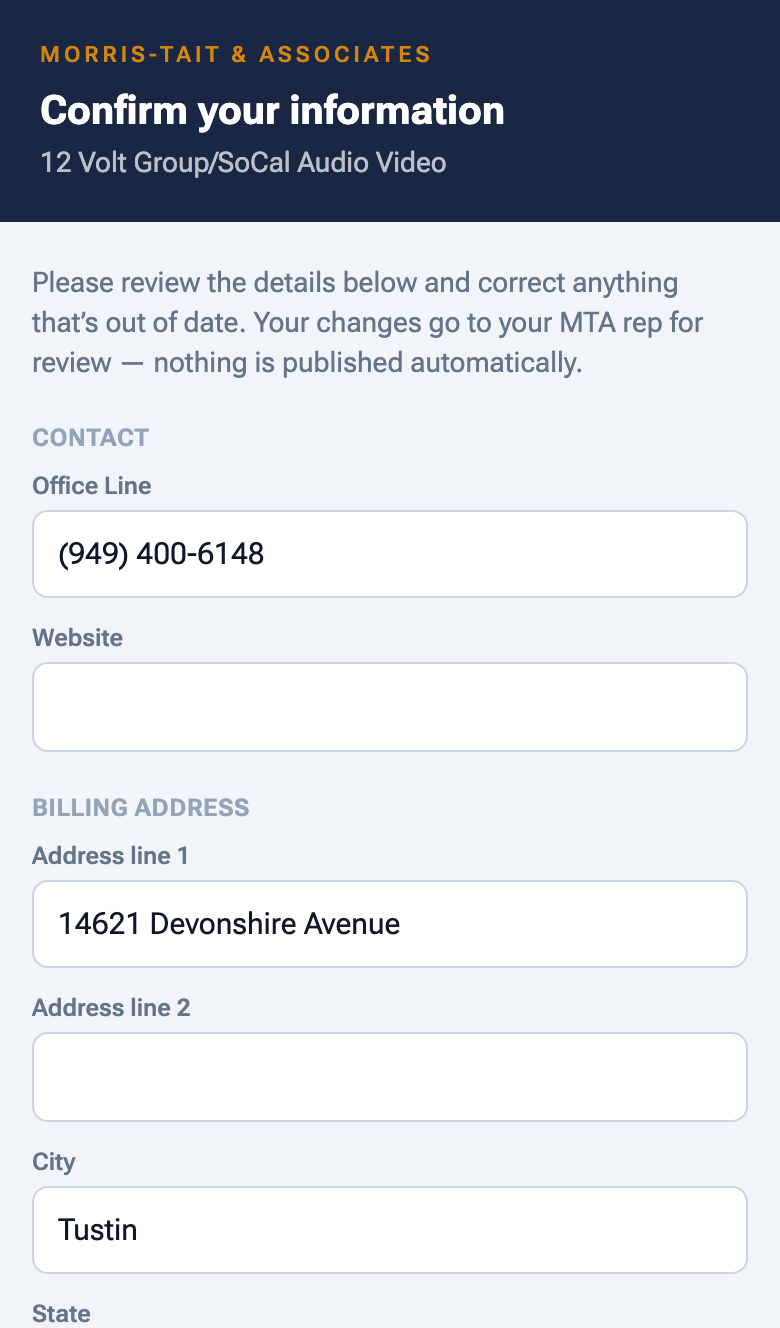
How a dealer gets here
- You open the dealer's detail page.
- At the very top, tap ✉ Request info confirmation (stewards only — Kevin, Brenda, Alison).
- The app generates a unique tokenized link and emails it to the dealer's primary contact. A bottom sheet shows the link with Copy and Open buttons as a backup.
- The dealer clicks the link in their email — no login required, the token authenticates them.
- They review and update their info → submit.
- Their submission lands in your Approve Queue.
- You approve (or edit-and-approve) → it updates the dealer record.
What dealers can update
- Dealer info — account type · primary contact name · payment terms · groups / memberships
- Billing address — line 1 / 2 / city / state / ZIP · "copy to shipping" checkbox
- Shipping address — same fields, separately editable
- Add new employee — first / last / title / email / phone / mobile. They can add multiple.
States the dealer can hit
| State | What they see |
|---|---|
| Loading | Spinner while we validate the token |
| Ready | The form, pre-filled with what we currently have on file |
| Invalid / expired / already submitted | A clear error message — they should email us |
| Done | Success thank-you, can close the tab |
When you onboard a new dealer, instead of asking them to email you their info, hit Request confirmation right away. They fill out the form themselves, you don't transcribe anything, and you get a clean record on day one.
Everything they submit goes to the Approve Queue first. This is intentional — it lets you sanity-check before live data updates. Don't expect the dealer record to magically change; you have to approve the submission.
18. MCP Dashboard K2 only #
The MCP (Mission Control Panel) Dashboard is K2's home base for keeping the AI machinery running. Connector status, API spend, transcription latency, error logs — all visible at a glance. Hidden from everyone else (route returns to / if a non-K2 hits it directly).
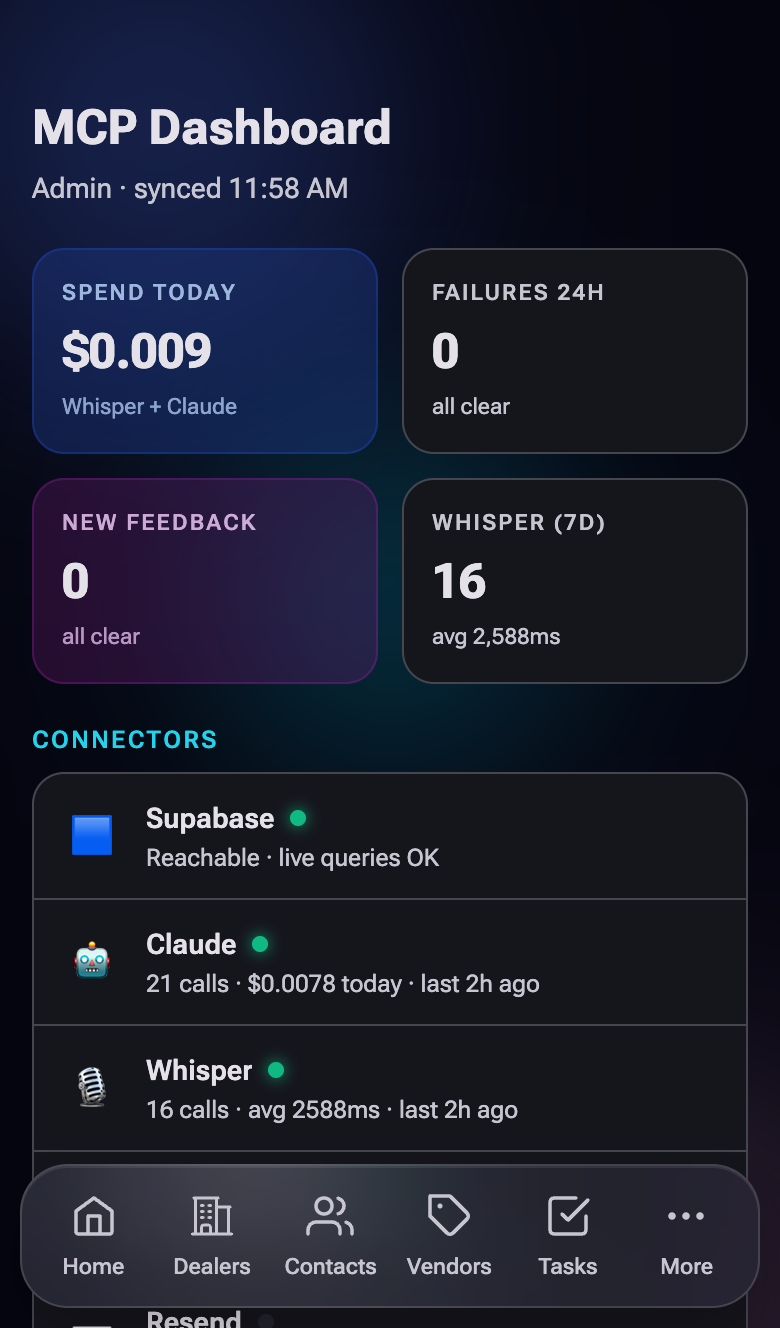
KPI tiles
- Whisper — total transcriptions, average latency (ms), last call time
- Feedback — new (unread) count
- Cost today — combined API spend in USD
- Claude — calls in the last 30 days + cost today
- Failures (24h) — error count from the connectors
Sections on the page
- Connectors — Supabase · Claude · Whisper · Resend · Outlook (Phase 3) · Cloudflare Pages. Each row shows status + last heartbeat.
- Failures — 24h error log from
error_logstable. - Data Health — table integrity + RLS policy spot-checks.
- Usage Breakdown — API spend by provider (day / week / month buckets).
- Vocab Insights — Whisper transcription patterns and common terms (informs the My Top Dealers logic).
- Feedback List — quick link into the Feedback Inbox.
The page footer shows the time of the last data refresh — sections fetch independently, this is the most recently-updated.
The structure is in place but several sub-sections render with mock data while Phase 2 builds out the real telemetry pipes. The KPIs at the top are real; deeper drill-downs are coming.
Live alerts when a connector goes red (e.g. Whisper API down), Claude cost budget gates, end-to-end voice-note tracing (one event chain from mic-tap to activity-saved), and a settings-style page for API budget caps.
19. Feedback Inbox K2 only #
Every More → Send Feedback submission from the team lands in the Feedback Inbox. K2 triages them — sets status, responds, and the response surfaces back to the submitter as a notification.
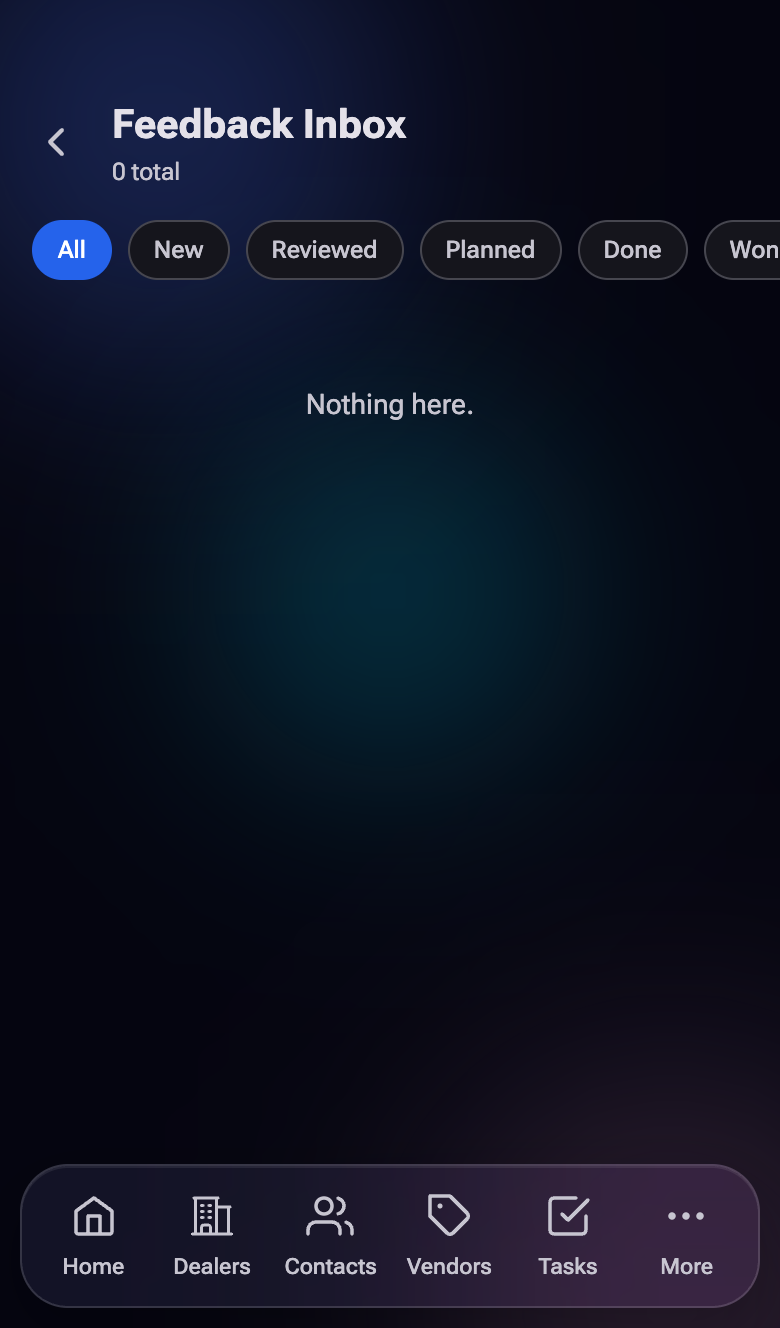
Status filter tabs
- All
- New (default)
- Reviewed — K2 has seen it
- Planned — on the roadmap
- Done — shipped
- Won't do — declined with reason
Feedback card
Each card shows type badge (Bug · Feature Request · Compliment), title, body snippet, submitter name, and time ago. Tap to expand.
Triage actions (inline)
- Status dropdown — change status; auto-saves.
- K2 response — type a reply; auto-saves with a "Saved ✓" indicator. The submitter sees the response in their Notifications.
- Delete — hard-removes the entry (rare).
"Won't do" + a one-line reason is way better than letting feedback sit forever. The team can tell when their input gets attention, and it sets clear expectations on what's coming vs. not.
20. Import & Reconcile stewards only #
The Import tool brings our old Repbox dealers and contacts into the new CRM. It never writes straight to the live data — everything is staged for review first, and nothing is created until you hit Commit.
Who can use it: K2, Alison, and Brenda. Find it under More → Import & Reconcile.
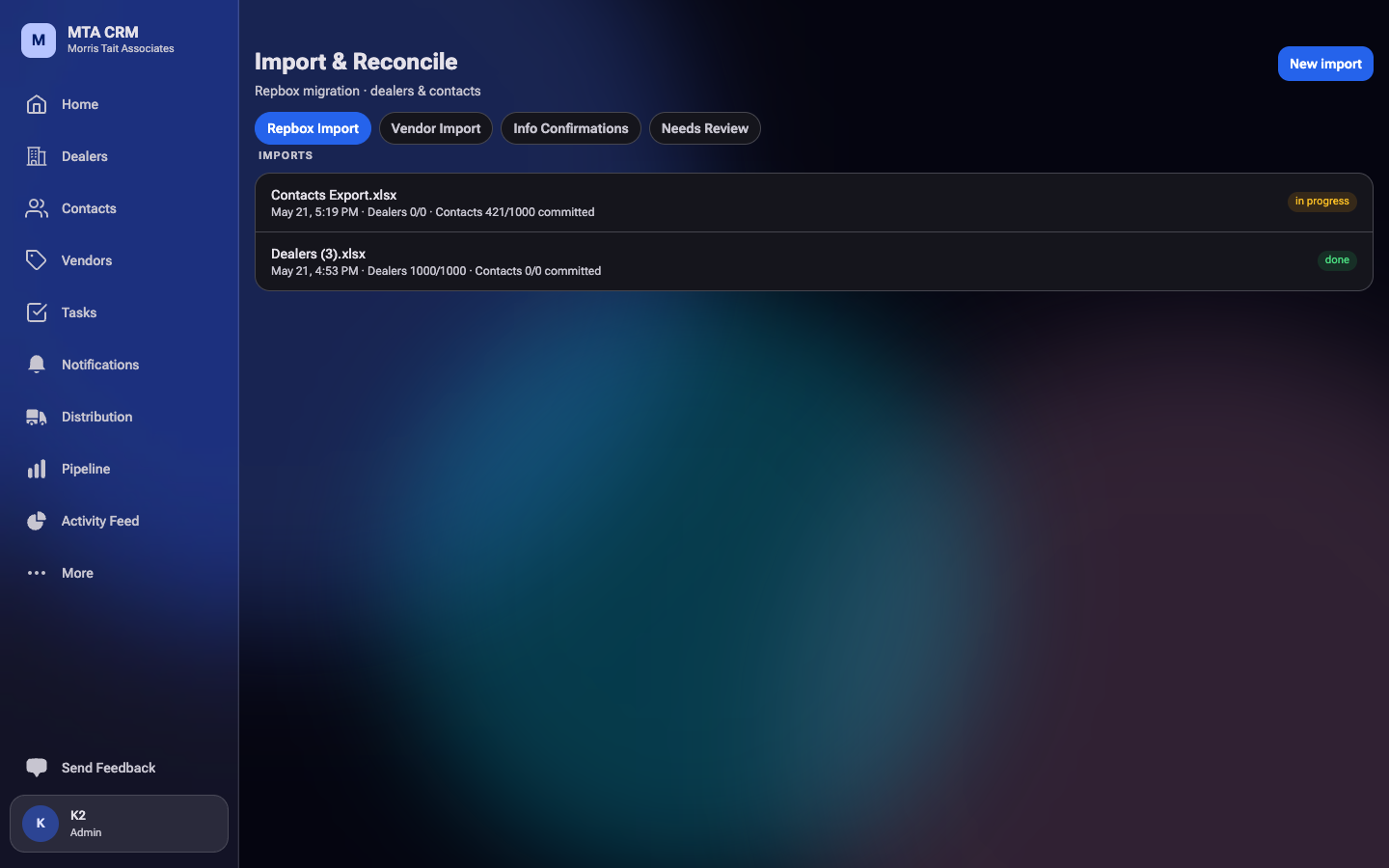
The page at a glance
The page opens on the Overview — every queue with a live count, a plain-English line about what it is, and a hint about what happens when you act. Tap any card to jump in. The tabs are grouped:
- Bring Data In — Repbox Import · Commissions · Vendor Import · Vendor Pricing · Pipeline Import · Events
- Fix & Review — Needs Review · Unplaced Contacts · Duplicates · Name Cleanup · CIS Review · Sony Review · Info Confirmations
- Reference — Dealer Lists · Recent Changes
Every tab starts with a collapsible "What Is This?" card explaining what the data is, where it comes from, what each status means, and what each button writes (with a Reversible / Editable After / Permanent tag). Collapse it once you know a tab — it stays collapsed for you.
Before anything writes to the live CRM, a confirm dialog spells out exactly what will happen ("12 dealers created · 3 updated …"). After it runs, the result is saved permanently as a receipt — the Overview shows the latest ones, and Reference → Recent Changes is the full history of every commit, post, and cleanup: who ran it and what it changed. One-time queues (CIS Review, Sony Review, Name Cleanup) drop off the tab row once they're finished — the Overview's "Completed" strip is where they rest. The Overview's Clean Up Completed card tucks finished work away (archive done imports, clear redundant staged rows, purge old resolved reviews) — always with a confirm first and a receipt after; live records are never touched.
Before you start
- File format: an Excel (
.xlsx) or CSV export from Repbox. (Apple Numbers files won't open — in Numbers do File → Export To → CSV/Excel first.) - One sheet of Dealers and one of Contacts (a single workbook with both sheets, or two separate files imported one at a time).
- Do dealers first, then contacts — contacts attach to their dealer by name, so the dealers need to exist first.
Step by step
- Tap New import and choose your file.
- Assign each sheet to Dealers or Contacts (it usually guesses correctly).
- Check the column mapping. Each spreadsheet column shows what CRM field it fills. The important ones (name, address, phone, status, Sales Rep, etc.) map automatically. You normally don't need to touch this — see Key terms for "raw stash" and the vendor columns.
- Tap Stage … rows for review. Nothing is live yet.
- Work the review screen, then Commit.
The review screen
At the top is the Reconciliation report (counts, plus call-outs for Unassigned dealers and anything that Needs attention). Below it:
- Rep assignments — each "Sales Rep" name from Repbox is matched to an MTA user, so dealers land under the right person (drives the Mine / rep filters and future reporting). Confirm or change each one with the dropdown; anything left Unassigned shows in amber.
- Dealer ↔ vendor links — the importer reads each dealer's manufacturer columns and auto-creates their vendor lines (e.g. AudioQuest, Sonance). Uncheck any you don't want. Brands with no matching vendor are listed as unmatched — tap + {brand} to add it as an Ecosystem vendor and it'll link.
- Dealers / Contacts tabs — every row with a status badge:
- Ready good to go
- Duplicate looks like another row in the same file
- Unlinked (contacts) we couldn't find its company by name; open the row to pick one
- Needs review missing a required field (e.g. no name)
- Per row: Approve, Edit & approve, Skip, or Archive. Use Approve all ready to clear the clean ones in one tap.
- Commit writes every decided row: dealers first, then contacts. Re-running later updates the same records (matched on Repbox ID) — it never creates duplicates.
Key terms
- Raw stash only — a column we don't have a dedicated field for (fax, secondary email, old per-manufacturer notes, etc.). It's not lost — the entire original Repbox row is saved on the record behind the scenes, just not shown as its own field. Leave these as "raw stash only."
- Vendor columns — the manufacturer columns (AudioQuest, Def Tech Info, etc.) have no field to pick in the dropdown on purpose — they're not a dealer field, they're relationships. Leave them on "raw stash / vendor line (auto)"; the Dealer ↔ vendor links panel handles them. The mapper shows a green "↳ auto-links dealers to {Vendor}" hint so you know it's covered.
- Prospect — a dealer that has a Company Name (non-dealer) value is treated as a Prospect (a dealer we have but who doesn't currently buy from us). It imports under the Prospects filter.
- Latest Comment → note — a dealer/contact's "Latest Comment" becomes a note on that record, authored by "Import" so the source is clear.
Recommended first run
Start small to sanity-check the mapping before doing everyone:
- Upload the full Dealers file and Stage it.
- Confirm the Rep assignments and Dealer ↔ vendor links panels look right.
- Approve ~5–10 dealers (a varied set — different reps, a Prospect, a few carrying several manufacturer lines), then Commit.
- Open one of them in the app and check: address, status, the assigned rep (does it show under that rep's Mine filter?), the Vendors tab, and the Latest Comment note.
- If it all looks right, Approve all ready for the rest and Commit — then import Contacts the same way.
After the import: assign reps to unassigned dealers
Some dealers come in Unassigned — Repbox had no Sales Rep for them, or we couldn't match the name. They show in amber ("Unassigned") on the dealer page. Every dealer should have a rep: it drives the Mine / rep filters and reporting.
Assign a rep to every Unassigned dealer.
- Open Dealers and look for ones marked Unassigned (amber).
- Open the dealer → tap the Rep tile → pick the right MTA rep.
- Repeat until none are left.
This applies to any new dealer added without a rep, not just the import. At launch this was tracked as the office task "Assign MTA reps to the unassigned dealers" (136 dealers from the Repbox import, assigned to Brenda + Alison).
The other tabs, in one line each
- Commissions — a month's commission statements, one CSV per vendor. Match each dealer name once (the app remembers it), then Post to Reporting; posted lines feed the dealer scorecards, vendor overviews, and distributor reports.
- Vendor Import — the one-time legacy Zoho manufacturer list, reviewed row by row; every field is your call (fill, overwrite, or skip).
- Vendor Pricing — upload price sheets as drafts, then publish to the vendor page. Publishing replaces the current sheet in that slot.
- Pipeline Import — the MTA Template (a fixed sheet you fill by hand — download the blank, bucket each deal into one of the five stages in the Stage column, upload; unknown customers file under the MTA House Account until re-homed from the board's House filter) or a vendor's own deal sheet (Séura, Wisdom, AiSPiRE…). Rows are keyed by opp number (or a stable stand-in) so re-uploads update the same deals; a template row's Notes cell joins the deal card's log, and "Export Current Pipeline to Template" seeds your starting master sheet from what's already on the board.
- Events — log a training/roadshow/show and which dealers attended; paste names or upload the sign-up sheet.
- Needs Review — contacts with junk or missing names, hidden from the main list until fixed or removed.
- Unplaced Contacts — real people with no company link yet, grouped by email domain so you can create or link their company in one step.
- Duplicates — the same dealer sitting in the CRM twice; pick which record to keep and everything moves onto it. See Duplicates, in detail.
- Name Cleanup — dealers with slash-combined Repbox names; pick the real name, the rest become DBAs and search aliases.
- CIS Review — dealer-brand lines where the app and Repbox disagree on Direct vs. CI Supply; one tap settles each.
- Sony Review — Sony dealers with a wrong or missing account number; enter the real one or clear it.
- Info Confirmations — answers dealers submitted about their own info, waiting for a steward to review and apply.
- Dealer Lists — read-only per-vendor roster (Direct / CIS / Distribution) with account numbers and CSV export.
- Recent Changes — the permanent receipt list for everything above.
Duplicates, in detail
Sometimes the same company ends up in the CRM twice. The Duplicates tab finds those pairs and lets you put them back together.
How it happens
Two ways, and neither is anybody's mistake:
- You add a dealer by hand today. Weeks later that same company comes over in a Repbox import. The import recognises records by their Repbox ID — and a dealer you typed in yourself doesn't have one — so it can't tell they're the same company, and creates a second record.
- An older cleanup filed a company as an Industry account (a builder, a design firm), and it later arrived properly as a dealer.
Why it matters
A split dealer splits its history. Half the commissions sit on one record and half the contacts on the other, so the scorecard under-reports and a rep opens the copy with no notes on it. Merging puts the company back in one piece.
What you'll see
Each row is one set of records that look like the same company, with a confidence tag. Work from the top — the list is ordered most-certain first:
- Same name (red) — identical names. Almost always a true duplicate.
- Near-identical (amber) — spelling or punctuation differs: "CA Premier A.V. Inc" vs "CA Premier AV Inc.", or a typo like "Automated Llifestyles Hawaii". Usually real — but read both.
- Possible (grey) — one name simply contains the other. These are the guesses, and plenty are wrong: "Laguna Electric Inc" and "Laguna Beach Electric" are different companies. Expect to say "Keep Both" to many of these.
Under each name you'll see what it's carrying — contacts, deals, commissions, vendor lines, notes. That's how you decide which record is the real one. Tap a name to open the dealer if you need a closer look.
Merging, step by step
- Tap Merge…
- Pick which record to keep. The one with the most history is pre-selected, because keeping it means the fewest things have to move. You can choose either.
- Settle any disagreements. Only fields where the records actually differ appear — a different phone number, a different rep. Tap the value you want. If they don't contradict each other, this step is empty and there's nothing to decide.
- Tap Review Merge. You'll see exactly what's about to happen: what's being kept, how many contacts/deals/commissions/notes are moving, and what's being archived.
- Tap Merge Records.
What actually happens
Every contact, deal, commission line, vendor line, note, task, visit and calendar entry attached to the extra records is moved onto the one you kept. The extras are archived — not deleted: they disappear from every list, but the full record is saved. The old name is kept as a DBA on the surviving record, so searching the old spelling still finds the company.
It runs as a single all-or-nothing step. If anything fails, nothing moves — you'll never end up with a half-merged dealer.
If they're not the same company
Tap Keep Both. They stay separate and that pairing never appears in this queue again. Branch records are the common case here — "Anderson Audio Visual" and "Anderson Audio Visual-SD" are two real locations, not a mistake. Dismissing them once clears them for good, so the queue gets quieter the more you work it.
Merging a duplicate you spotted yourself
You don't have to wait for the queue to find it. On any dealer page, tap the ⋮ button (top right of the action row) and choose Merge Into Another Dealer…, then search for the other record. From there it's the same screens as above.
21. @-Mentions #
The @-mention is one of the highest-leverage tricks in the app. Type @ anywhere it's supported and pick from the popup — the app handles linking, routing, and notifying. Used heavily in Tasks (for auto-defaulting) and Voice Notes (for tagging entities).
Where it works
| Field | Behavior |
|---|---|
| Task title | Auto-assigns to first @-teammate, auto-links to first @-entity. Second @ goes to Also Notify / Mentions. |
| Task notes | Adds chips for tagged entities/teammates, but never auto-routes (freeform field). |
| Voice note transcript | Tags the entity for the resulting activity. Useful when auto-matching misses. |
| Activity body | Adds mention chips so the activity shows on every referenced entity's page. |
| Task comment | Notifies the @-mentioned teammate. |
The mention picker UX
- Type
@→ popup appears, grouped by entity type: Users, Dealers, Vendors, Contacts. - Keep typing to narrow — substring match, no exact-name required.
- When the list narrows to one match, press Enter to insert it.
- Arrow-key navigation isn't supported yet — type to narrow, then Enter on the single match.
Don't want to type the dropdown navigation? Most mention-supporting fields have a + Add button next to the chip area that opens a full entity picker with search. Slightly slower but easier when you're not sure how to spell the name.
What "tagged" actually does
When an entity is mentioned in an activity, task, or comment, that record shows up on the entity's detail page. Mention "@SoundUnited" in a Sonance-Sonance note? It shows on Sound United's page too. This is how you connect related threads without writing separate notes for each entity.
Arrow-key navigation in the popup, recently-mentioned shortcuts, group mentions (e.g. @SalesTeam instead of fan-out groups in Add Task), and #-tag support for free-form labels.
22. Status badges #
Status badges show up everywhere — dealer status, task urgency, opportunity stage, vendor relationship, import row status. They're consistent across pages: if you see a green pill on the dealer page, the same status on the vendor page is also green. Here's the full legend.
Dealer status
Dealer-vendor relationship status
Task urgency
Opportunity stage
Activity method (Activity Feed icons)
Voice note status
Last-activity dot (on dealer rows)
Role & team
Account type
23. Theme & offline behavior #
A few cross-cutting behaviors that apply across every page.
Dark / Light theme
Default is dark — designed mobile-first for the way reps actually use the app (on a phone, often outdoors, often with screen brightness low). Light theme exists and is fully featured. Toggle in Settings → Appearance. Saves to your profile so it follows you across devices.
PWA — Add to Home Screen
The app is a Progressive Web App. iPhone Safari: share → "Add to Home Screen." Android Chrome: menu → "Install app." After install you get a fullscreen icon with no browser chrome — feels like a native app.
Draft persistence (this is a feature, not a bug)
If you start filling out the Add Task or Add Dealer modal and then the app reloads (phone locks, browser tab refreshes, etc.), your draft comes back. The modal re-opens with everything you typed still in place.
If a modal disappears mid-edit because the phone slept or you switched apps, just re-tap the same + button. The modal re-opens with your draft. Don't bother trying to remember what you typed.
What happens offline?
The app needs network to read or write Supabase data — so offline you can browse cached pages but not save changes. Drafts persist locally; they'll sync when you're back online. Note: there's no offline-first sync layer yet. Don't go into a dead-zone meeting expecting to log notes — record on your phone's voice memo app instead, dictate later.
Scrollbar behavior
By design, scrollbars are hidden on every list view (scrollbarWidth: 'none') for a cleaner mobile feel. You can still scroll — fingers and trackpads work fine — just no visible bar. This is intentional, not a bug.
No floating buttons that block content
The "+" button for adding new items lives in the top right of the page header, not as a floating bottom-right FAB. (Home is the one exception — the FAB there is the note-type chooser.) The reason: on long list pages, a floating FAB blocks the row beneath it. Static header buttons are out of the way.
24. Tips & Tricks #
The best non-obvious things in the app, in one place.
Voice notes
- Pin your top 20 dealers in Settings. Whisper accuracy on proper nouns improves dramatically. Five minutes one-time, payoff every recording.
- Say the dealer name first in every voice note. Locks the matcher onto the right entity immediately.
- Typed mode is just as fast for short notes. No transcription wait — jumps straight to the AI review screen.
- Type
@DealerNamein the transcript to force-tag if auto-match missed. - Reopen the app after adding a brand-new dealer if you're going to record about them within 5 minutes — clears the matcher's cache.
Tasks
- The Created filter is your delegation tracker. Skim it daily to follow up on tasks you handed off.
- Auto-defaults are title-only. Type
@TeammateNameat the start of a task title to fan it out without touching the Assignee field. - Group fan-out for whole-team tasks — Sales Team / Office / MTA All — creates one parent + child per person, each independently completeable.
- Delete the @ in the title to undo. Removes both the linked entity and the assignee that the @ auto-filled.
- Tasks can be commented on. Use comments for back-and-forth instead of creating a chain of tasks.
Dealers & contacts
- Use Request Confirmation for new dealers, not just for cleanup. Dealer self-fills the form, you skip transcription.
- Don't delete contacts when they leave a job. Change linked company instead — keeps their history.
- Universal search beats list navigation for known dealers. Open the app → type → tap.
- Last-activity dot tells you stale accounts at a glance. Sort by color, work the red dots first.
Navigation
- Add to Home Screen on phone for a fullscreen, app-feel experience.
- Bookmark on laptop too — the desktop side nav has more direct tabs than mobile More.
- Swipe between tabs on detail pages instead of tapping each tab.
- Press / on this guide to focus the section search.
Feedback & bugs
- Send Feedback in the app beats texting Kevin. Lands in a tracked queue, gets a response back as a notification.
- Include the app version (visible at the bottom of the More page) when reporting weird behavior.
Admin / steward
- Import dealers before contacts. Contacts attach to their dealer by name; the dealer needs to exist first.
- Run a small Import first (~5–10 dealers) to sanity-check the column mapping before approving everything.
- Check Unassigned dealers after every import — every dealer should have a rep.
25. What's coming next #
A snapshot of what's coming. The authoritative, forward-looking roadmap now lives in the app — the team feedback board, where items move through planned, in progress, and done.
Phase 2 — Tier 1 finish — ~Sep 2, 2026
After Phase 2, the team operates fully on the CRM and the legacy tool is retired.
| Theme | What it adds |
|---|---|
| 🛡️ Approval Queue v1 | Full review interface — inbox + detail; routes for new-dealer creation, business-card no-match, duplicates, vendor approval |
| ✅ Tasks polish | Recurring tasks, templates, snooze/defer, archiving |
| 🏢 Dealers v2 | Status filter chips, tier-color tints, 90-day stale filter, doc vault, bulk import |
| 👤 Contacts v2 | Extend type to vendors/branches, bulk import, birthday reminders, transfer-flow polish |
| 🏭 Vendors v2 | Playbooks & Presentations, Vendor Demo Requirements, distribution-parent grouping |
| 🤝 Joint Visits | Vendor Visits tab on Dealer page + Dealer Visits tab on Vendor page |
| 🚚 Disty Profiles | Branch profile pages, brands-under-disty grouping |
| 💰 Pipeline MVP+ | Drag-and-drop stage changes, stage-change notifications, filters, reporting hooks |
| 🛠️ MCP Dashboard | Live connector status, cost gates, end-to-end tracing |
| 📝 Feedback Page | In-app submit form + K2 inbox triage |
Phase 3 — Tier 2 extensions — ~mid-Feb 2027
"Nice-to-have" capabilities that don't block daily use. Sequenced so dependencies land first (Calendar before Pre-Meeting Briefs, etc.).
| Theme | Why this slot |
|---|---|
| 📅 Calendar | Foundation for Pre-Meeting Briefs |
| 🔄 Outlook 2-way sync | Microsoft Graph API has buffer; depends on Calendar |
| 📋 Pre-Meeting Briefs | Pulls Calendar + Voice Notes data |
| 📧 Email Import | Email-to-CRM forwarding + auto-tagging + attachments |
| 📊 Reporting | Monthly + quarterly leadership reports (needs ~3 months real data first) |
| 📚 Wiki / Knowledge Base | Field Intel + competitive content |
| 📷 Business Card Uploader | OCR + Claude extract |
| 📘 SOP Builder UI | Schema is live; UI is the missing piece |
| 📝 Automated Forms | Wisdom Pre-Cal first, then expand |
| 🎧 Demo Equipment | Kits + checkout/check-in tracking |
| 🖥️ Display Units | QR / barcode scanning for floor units |
| 🤖 MTA Chat Bot | Powered by Wiki + CRM data |
| 🏬 Dealer Portal | External-facing — needs core to be rock solid |
| 🎤 Plaud integration | When their API is figured out |
The in-app feedback board shows what's in flight, what's next up, and where each item sits (planned, in progress, done). That's the canonical source for forward-looking work.
26. FAQ #
"Google hasn't verified this app — (unsafe)"
You'll see this exactly once per browser per account. It's expected: it's our internal tool that only 8 people use, and we never asked Google to formally review it. Tap Advanced → Continue to MTA CRM (unsafe). Safe — Google just hasn't reviewed.
I added a new dealer and tried to record a note about them — it didn't auto-tag.
That's the ~5-minute buffer (see Voice Notes). The matcher caches the dealer list per session for speed. Two fixes: refresh the app, or tag by hand on the review screen with @DealerName. After the cache refreshes you'll never see this for that dealer again.
I marked a task complete by accident. Can I undo?
Yes — open the task, tap Undo. It re-opens it. No data is lost; the original due date, assignee, and notes are all preserved.
What's the difference between Mine and Created on the Tasks page?
Mine = tasks where you're the assignee (your to-do list). Created = tasks you created, including ones you delegated. Use Created to follow up on what you handed off — you won't see those in Mine.
Why can I see another rep's dealers?
By design — the team is small (8 people) and information silos hurt more than help. The Mine filter shows just yours when you want to focus; the default All view shows the whole team. You can browse anyone's accounts but you should respect that another rep owns it.
Can other people see my voice notes?
Yes — once you approve them, they're activities on the linked entity's page and the team activity feed. Before you approve, the raw voice note + transcript is visible only in your Voice Notes page and Approve Queue.
I clicked Sign In and it said the wrong account.
If you have multiple Google accounts open in the same browser (personal + work), the picker shows both. The CRM only lets @morristait.com through — pick the right one. To stop seeing the picker, use a separate browser profile for work.
The app got slow / weird. What do I do?
Refresh the page. The most common slowness is when the dealer-cache or react-query state gets stale. A refresh blows away both. If that doesn't fix it, send feedback via More → Send Feedback with the page you were on and what you were doing — include the app version (visible at the bottom of More).
How do I find a dealer I just added?
Universal search on the Home page is fastest. Type a couple letters of the name; it shows up immediately. The Dealers list also updates instantly — no refresh needed.
I want a feature that's not in the app.
More → Send Feedback with type "Feature Request." It lands in the Feedback Inbox with a tracked status — you'll see a response and a roadmap placement.
Can I use the app on iPad?
Yes — it shows the mobile layout. The desktop side-nav kicks in only above the laptop breakpoint, so iPad gets bottom nav. Add it to your Home Screen for fullscreen.
What's the data behind the badges?
See the Status badges section for the full legend. Every status has a stable color across pages — same status, same color, every time. To add a new status (admin only), update src/lib/statusStyles.js and it auto-renders everywhere.
The Approve Queue empty state — am I done?
Yes. The Approve Queue tile on Home hides when the queue is zero; if you're seeing the empty state on the Approve page, every AI-suggested item has been blessed or rejected. Go log more voice notes.
27. Glossary #
Quick reference for terms used in the app and this guide.
| Term | What it means |
|---|---|
| Account | A dealer, prospect, or CIS-only entity. The Add modal calls it "Account" because all three live in the same table. |
| Activity | A logged interaction — note, call, email, visit, task event. Lives on a dealer / vendor / contact's detail page under the Activity tab. |
| Approval / Approve Queue | The safety net between AI-suggested data and live records. Every voice note and confirmation submission lands here first. |
| Buying group | HTSA, Pro Source, ProGroup, etc. A dealer's purchasing-power affiliation. |
| CIS Only | A specific account-type — dealer that only does CIS (Custom Installation) work, no retail. |
| Confirmation link | Tokenized URL we email dealers asking them to verify their own info. Lands in the Approve Queue on submit. |
| DBA name | "Doing business as" — the dealer's everyday business name when different from their legal name. |
| Distributor | Channel partner like Snap One, ADI. Different from a "dealer" — they have branches and territory coverage. |
| Distribution node | A specific branch/location of a distributor. |
| Ecosystem brand | A non-MTA-repped manufacturer we still track (competitors, partners, brands dealers carry). |
| Fan-out | Assigning a task to a group instead of a single person. One parent task spawns one child per teammate. |
| K2 | Kevin — the admin who owns the build. "Admin (K2)" role is the most privileged. |
| Mention | An @-tagged person or entity. Routes notifications + creates entity-to-record links. |
| MTA Brand | A manufacturer line MTA actively represents — Sonance, AudioQuest, Sound United, etc. |
| Prospect | A dealer-shaped account that doesn't currently buy from us. Subset of "dealers" table, filtered separately. |
| PWA | Progressive Web App. The CRM is one — installable on phone Home Screen for an app-like experience. |
| Rep | MTA sales rep — the team member who owns the relationship with a given dealer. |
| Repbox | Our legacy CRM. Being migrated out via Import & Reconcile. |
| RLS | Row-Level Security in Supabase. Every table requires you to be authenticated; sales reps see all but only edit certain things. |
| Smarty | Address-validation API we use on the dealer address modal. Standardizes formatting and suggests corrections. |
| Steward | Role for data managers (Brenda, Alison). Has access to Import & Reconcile. |
| Tier | A dealer's level with a specific vendor — used in dealer-vendor relationships (e.g. "Sonance · Tier 3"). |
| Voice note | An audio-recorded note that Whisper transcribes and Claude analyzes before landing in the Approve Queue. |
| Whisper | OpenAI's speech-to-text model. The transcription engine behind voice notes. |
More sections will appear here as features ship. Spot something missing? More → Send Feedback in the app.